Quick answer: Add the MKV, select the audio and subtitles you need, then choose MP4 · H.264 and Convert. This creates a new H.264/AAC copy; it is not a lossless MP4 remux. Keep the MKV if it holds tracks or attachments you still need.
Recommended starting settings
| Setting | Start here | Why |
|---|---|---|
| Output | MP4 · H.264 | A practical compatibility copy with AAC audio. |
| Resolution / frame rate | Same as source for the first test | Avoid changing size and motion without a reason. |
| Audio | Select the required language in Tracks | MKV may contain commentary or several soundtracks. |
| Subtitles | Choose compatible tracks or deliberate burn-in | A player may not support every original subtitle format. |
Decide what needs to change
Read the source information in the queue and open Tracks. A film with alternate languages or commentary needs a different plan from a camera clip with one soundtrack. Make a note of the audio and subtitle tracks you want in the result.
Choosing MP4 does not automatically make every possible stream compatible. MP4 · H.264 creates an H.264/AAC output; HEVC needs compatible playback. Free Video Converter offers MKV remux as a separate operation, but that produces MKV, not a lossless MP4 conversion.
Make a practical MP4 copy
Work on a copy while you test the destination player. You can keep the original MKV as the version with its full set of tracks.
- Add the MKV and check that its duration and audio information are readable.
- Open Tracks and include the language or soundtrack you need. Review the output track-preservation options.
- Select MP4 · H.264, then keep source dimensions and frame rate for the first test.
- If the subtitles must always appear, load a supported external subtitle and enable burn-in in Edit / Trim.
- Choose the output folder. Preview an encoded sample if useful, then Convert and inspect the finished MP4.
Plan for subtitles before encoding
Selectable subtitles depend on the output container and subtitle type. Text captions and image-based disc subtitles are not interchangeable. If a track cannot be represented as a selectable MP4 subtitle, use a compatible sidecar workflow or burn supported captions into the picture.
Burn-in is permanent in the new video. Use Subtitle Studio to correct text, timing and appearance before conversion; keep an editable subtitle file if you may need to revise it later.
Choose quality for the real viewing task
Changing from one compressed codec to another encodes the picture again. There is no universal setting that guarantees the original quality at a smaller size. Compare a sample with motion, faces and fine detail instead of judging one still frame.
Constant quality is a useful starting point when appearance matters most. For a strict sharing budget, use target-size mode and allow for the soundtracks you retain. Extra tracks consume part of the available space.
Frequently asked questions
Can I just rename .mkv to .mp4?
No. Renaming does not rewrite the container or convert its codecs and tracks.
Why did a subtitle disappear?
Check that the track was selected and that its type fits the output. Burn-in or a sidecar subtitle may be needed.
Will my original MKV be replaced?
No. The converter writes a separate result and avoids silently overwriting an existing output file.
See the real Windows workflow
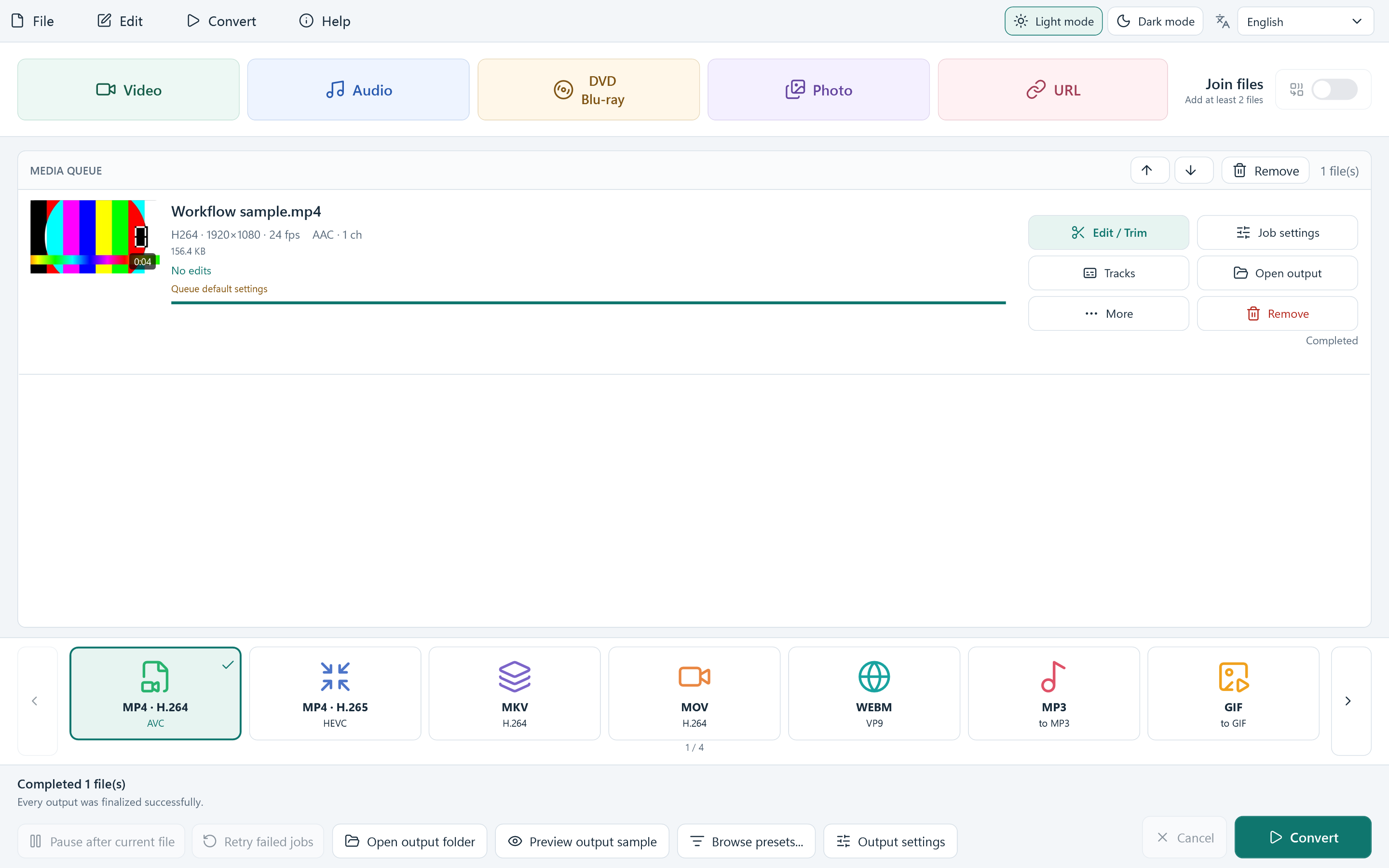
Import a clip. Choose MP4. Open the finished video.
These are current Free Video Converter 8.1.0 screens from this website's application. The four-second test pattern was created for this guide and converted with the published app.
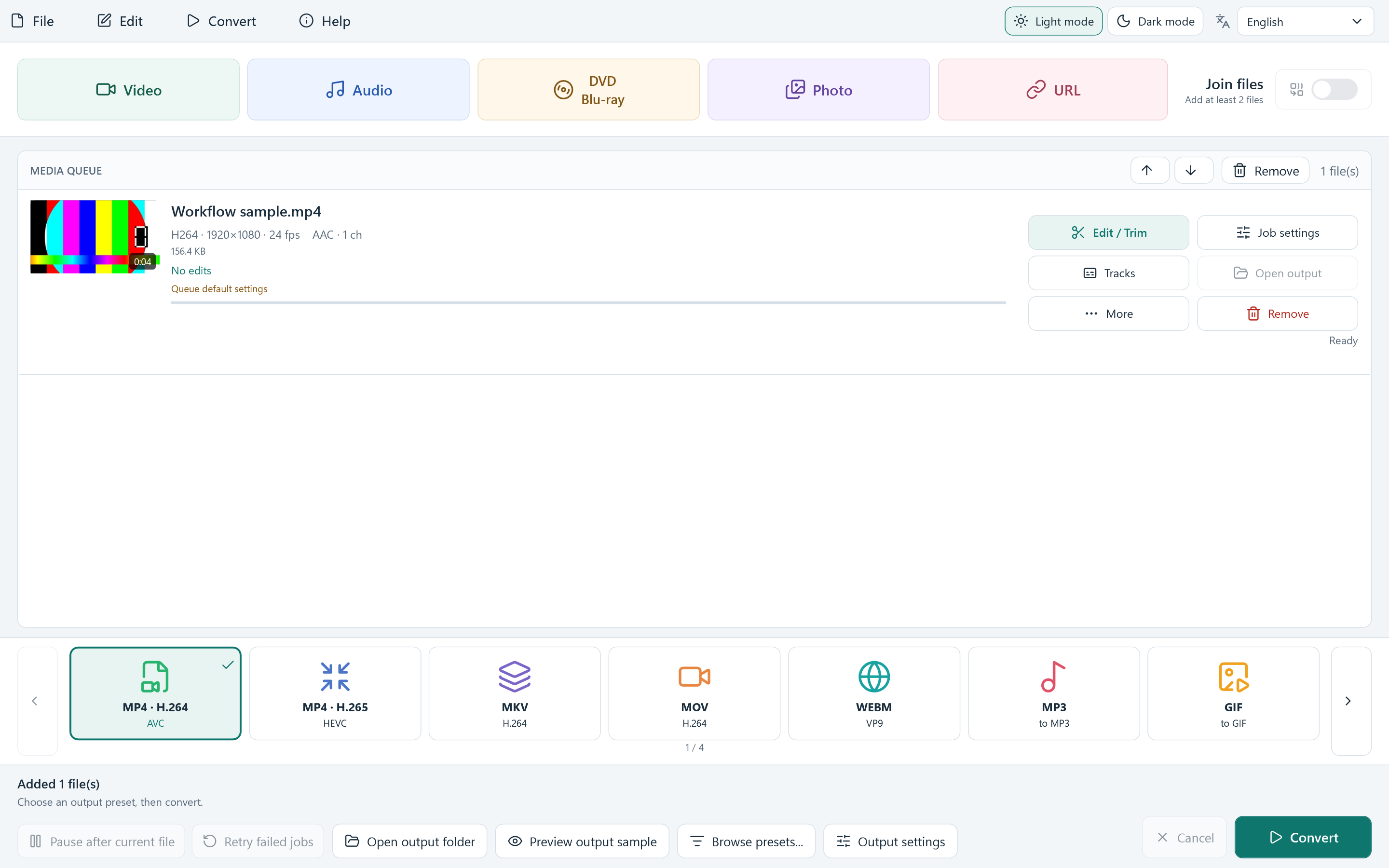
1. Add and check your source
Select Video or drag a local video into the queue. Read the source resolution, codec, duration and audio details on the row. Select MP4 · H.264 along the bottom when you want an everyday playback copy.
Adding a file prepares the job; it does not change your original. A MOV or MKV file is the input container, while MP4 is the output container you choose.
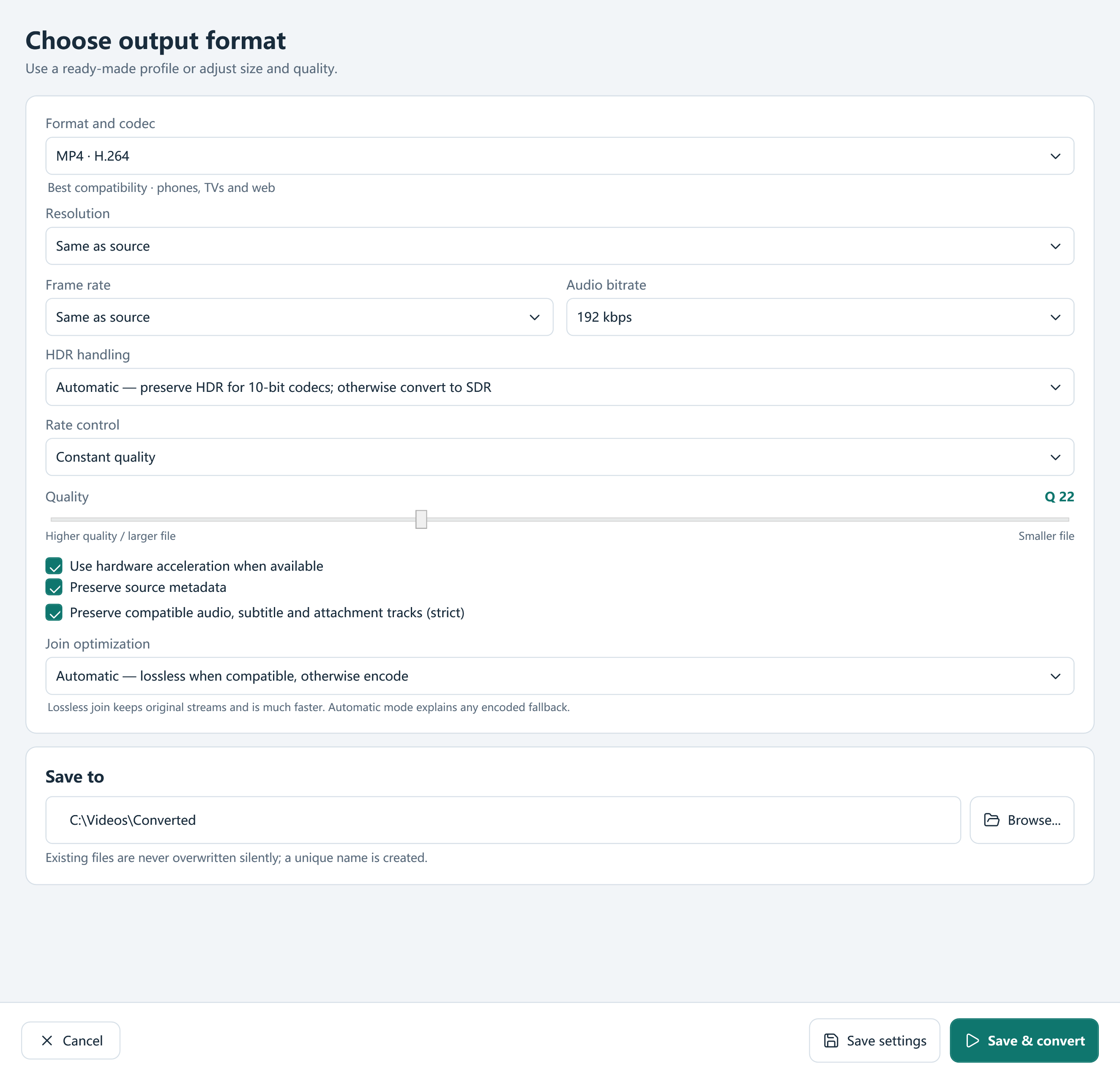
2. Review format, quality and Save to
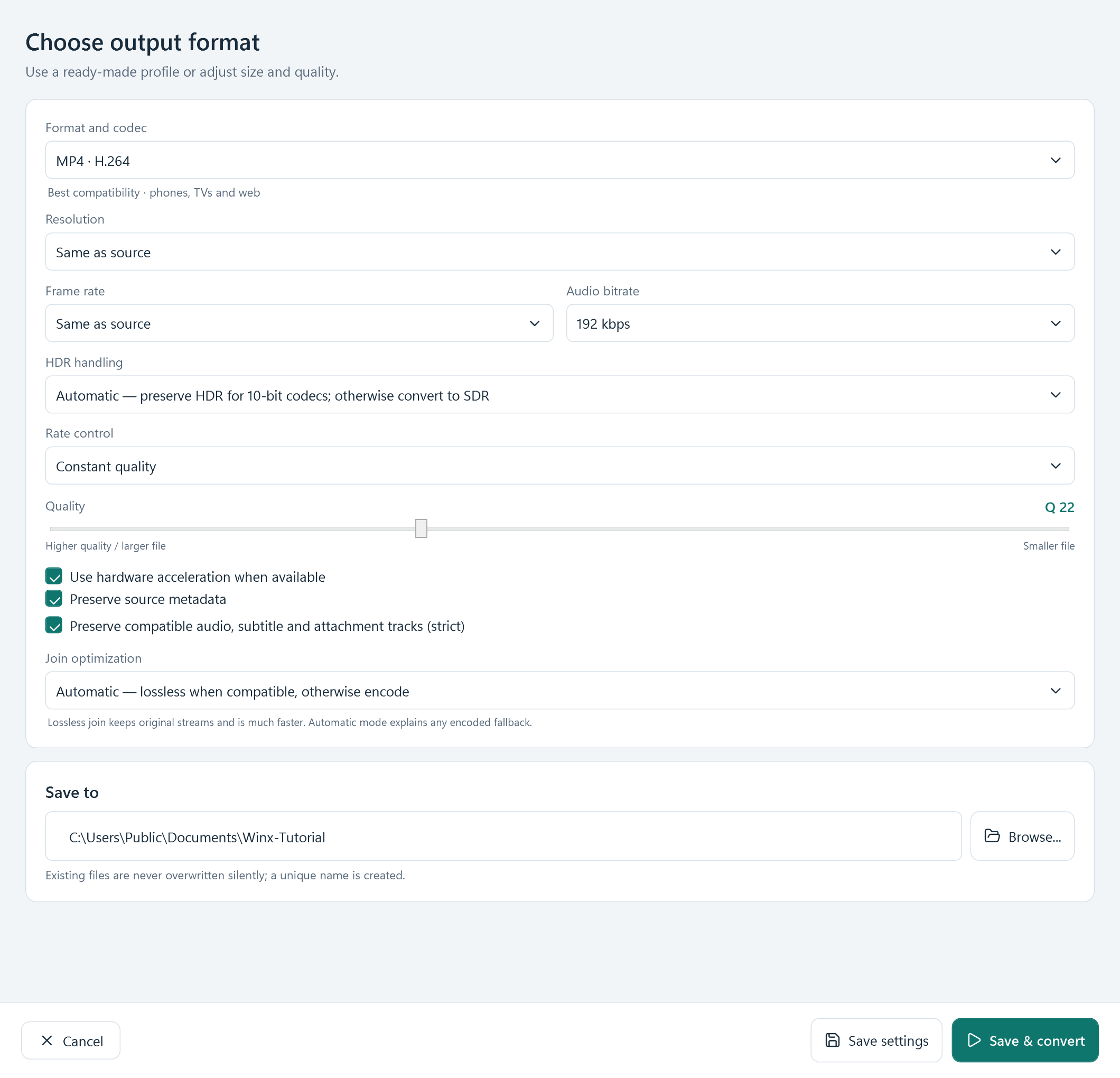
Open Output settings. Start with Same as source for resolution and frame rate unless you need a smaller copy. Check the audio setting and Save to destination. The actual H.264 settings are shown here.
Use Save settings to return to the queue, or Save & convert to start. A larger frame size cannot recover detail missing from your source. Hardware acceleration depends on a compatible detected encoder.
3. Convert, then check the saved copy
Select Convert and wait for the row to say Completed. Use Open output on the completed row or Open output folder at the bottom. Play the file and check picture, sound, duration and orientation before replacing any original.
For a batch, check each item's result and the overall failed count. A successful first file does not mean every queued file succeeded.
Download Free Video Converter