Choose how the captions should appear
Use a selectable subtitle track when the player and container support the subtitle type and viewers need a choice of language. Use burn-in when the captions must appear consistently in the picture. Burn-in requires encoding and cannot be switched off in the finished video.
Keep the original video and editable caption file. If you notice a spelling mistake after burning captions into an MP4, you will need a new encode from the source rather than a simple track replacement.
Add a supported external subtitle
You can burn SRT, ASS, SSA or VTT subtitles. Subtitle Studio opens SRT/ASS/SSA for text and timing work and exports SRT or ASS.
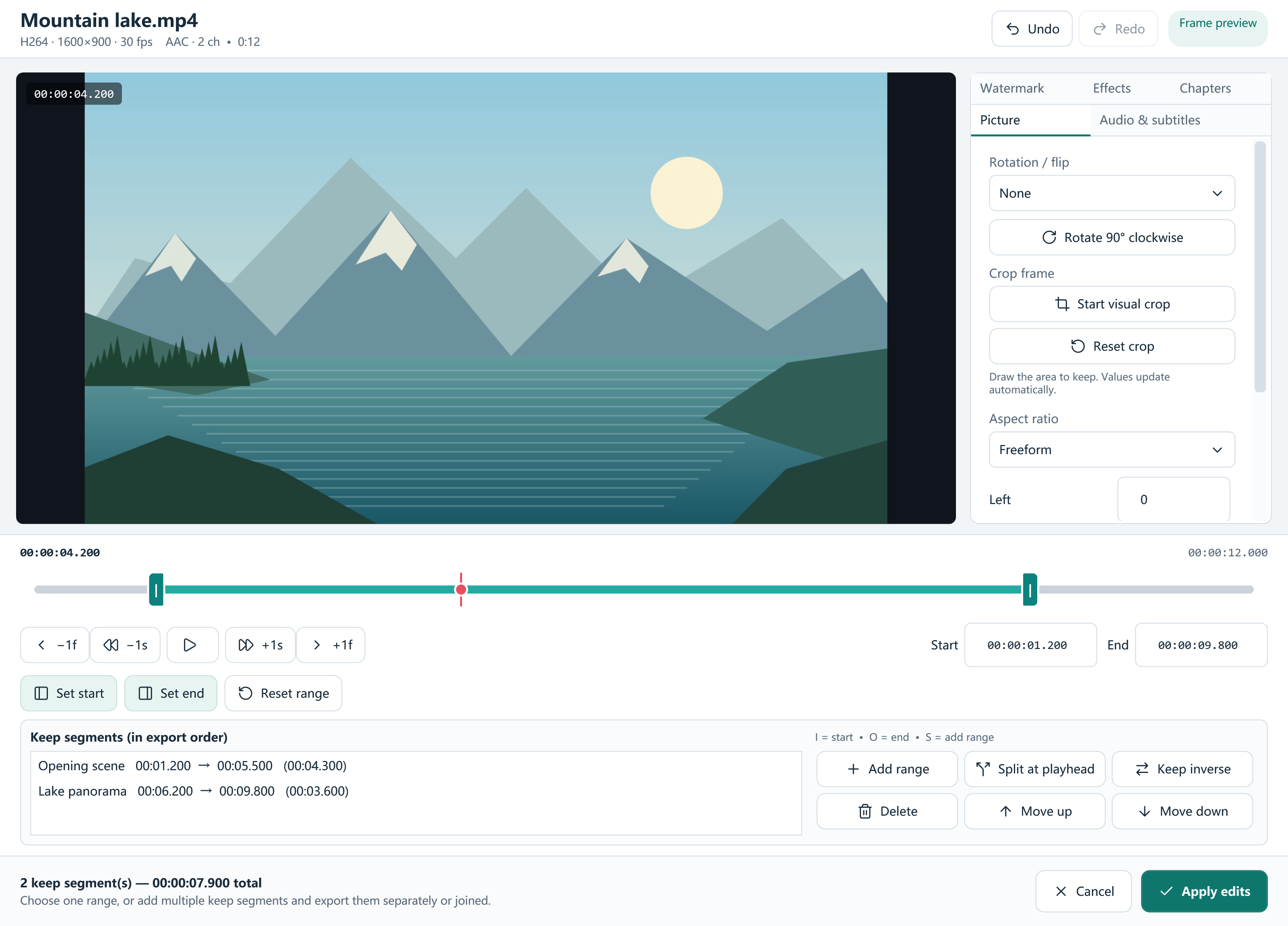
- Add the local video and open Edit / Trim. Pending online videos need to download before local editing is available.
- In Audio & subtitles, choose the external subtitle file and enable burn-in when permanent captions are required.
- Open Subtitle Studio to review the cues. Correct text, start/end times and styling, then save or apply the edit.
- Preview captions on a real video frame, including a long line and a scene with a bright background.
- Choose the output preset and Convert. Check the beginning, middle and end in the intended player.
Correct a delay differently from drift
If every line appears a similar amount too early or too late, Subtitle Studio can shift all cues by an offset. Test a spoken line near the beginning and another near the end before deciding the amount.
If timing gradually becomes less accurate, one global offset will not solve the whole problem. Inspect individual cue times and whether the subtitle file matches this cut of the video. Trimming or using a different edition can change where the dialogue occurs.
Make captions readable
Use a size, outline, shadow and screen position that remains legible against the actual picture. Check that captions do not cover important on-screen information or fall outside the useful frame. Text color alone cannot guarantee contrast on every scene.
Track language, title and default/forced metadata help viewers identify available options. These labels do not create a transcript or verify the accuracy of the caption text; review the words yourself.
Match subtitle handling to the output
Containers support different track combinations. Preserve compatible tracks, choose a sidecar workflow where needed or burn supported captions when the destination cannot use a selectable track. Do not assume that image-based disc subtitles can be edited as ordinary SRT text.
The app does not generate speech-to-text captions or automatically translate subtitles. It provides local editing, styling, extraction and conversion tools for captions you already have or create yourself.
Frequently asked questions
Can I turn off burned-in subtitles?
No. They are part of the encoded picture. Keep an unburned source if you need another version.
Can I fix every line being two seconds late?
Use a suitable global cue offset and verify it at several points. An offset does not solve gradually increasing drift.
Does Subtitle Studio create AI captions?
No. It edits existing or manually entered subtitle text and timing.