Quick answer: For a readable iPhone or camera MOV, choose MP4 · H.264 for an everyday playback copy. Keep the original, inspect the preview before rotating it, and decide whether an HDR source should become SDR or stay HDR in a suitable 10-bit output.
Recommended starting settings
| Setting | Start here | Why |
|---|---|---|
| Everyday output | MP4 · H.264 | Creates a delivery copy rather than an editing master. |
| Size and motion | Same as source initially | Keep a portrait recording vertical unless you choose a crop. |
| Rotation | Check Edit / Trim before applying rotation | The source may already display correctly through its orientation metadata. |
| HDR for mixed playback | Convert HDR to SDR for broad compatibility | Preserving HDR instead needs a supported 10-bit HEVC, AV1 or VP9 preset. |
Read the recording before choosing settings
Add the MOV and check its dimensions, frame rate, duration and codecs in the queue. Open Tracks if it has more than one soundtrack. A very large production file may be expected; converting it to a delivery MP4 trades editing flexibility for easier sharing.
Keep the original camera file. If it is part of an editing project, the project may still depend on its original path and metadata after you make a smaller playback copy.
Create an everyday playback copy
For a first compatibility test, change the codec only where needed and avoid changing several picture settings at once.
- Add the MOV using Video or drag and drop.
- Choose MP4 · H.264 for a broad playback starting point, or a suitable HEVC profile for a known compatible destination.
- Keep source resolution and frame rate, or deliberately choose 1080p or 720p for a smaller delivery copy.
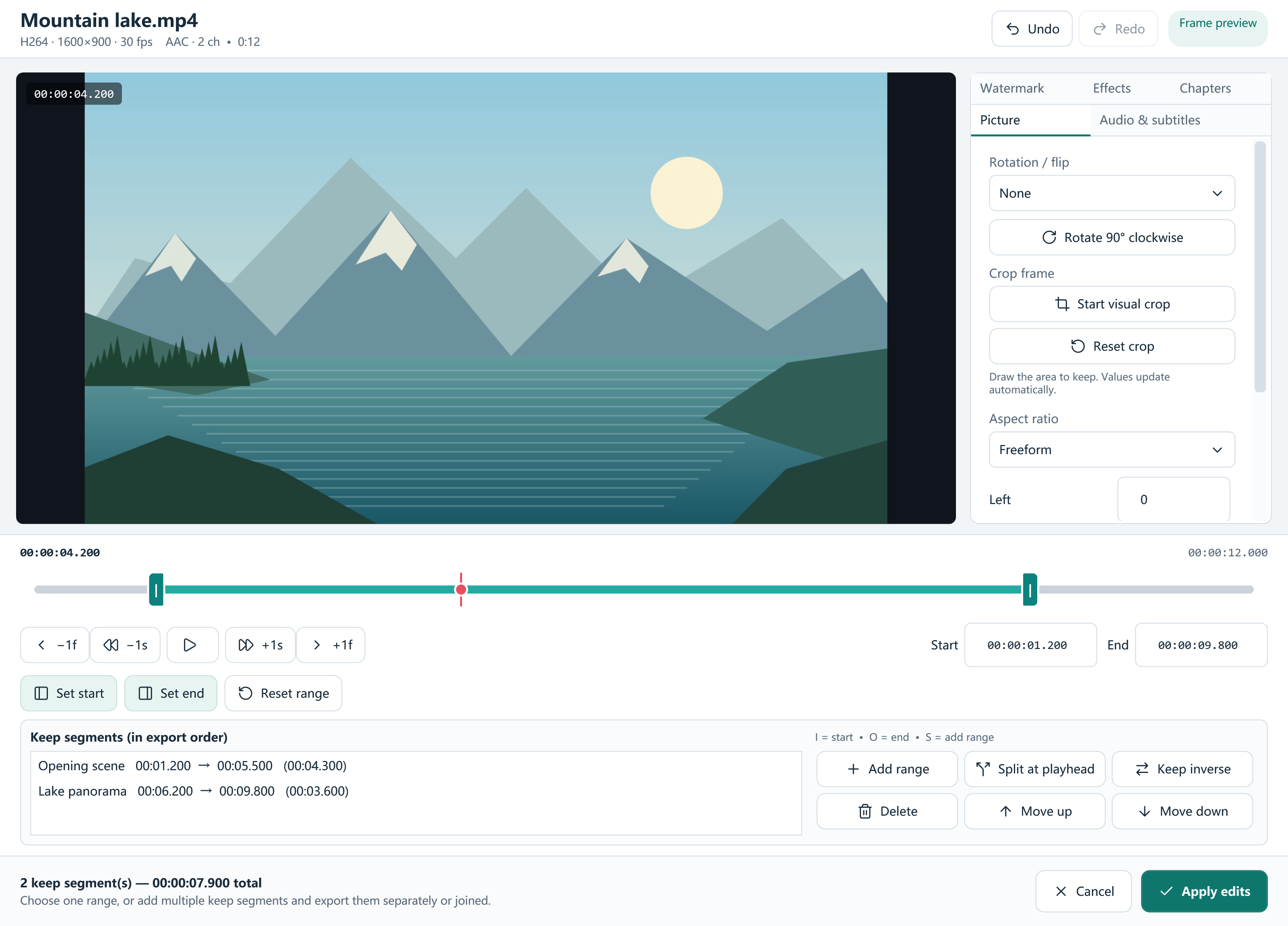
- Check the picture in Edit / Trim. Apply rotation or crop only if the intended result needs it.
- Review HDR and audio options, choose a new output folder and Convert. Play the finished file on the destination device.
Make an explicit HDR decision
A phone recording may contain HDR video. Output settings offer Automatic, Preserve HDR and conversion to SDR. Preserve HDR needs an appropriate 10-bit output codec and a compatible playback chain; an SDR copy is often simpler for a mixed audience.
Judge the encoded sample in the environment where the file will be watched. Tone mapping changes how highlights and colors are represented, so a smaller file with the right appearance can matter more than preserving a label.
Check portrait recordings in the preview
Camera orientation can be represented by metadata as well as the stored picture. Inspect the actual preview before adding a 90-degree rotation. If you rotate an already correctly displayed clip again, the output can end up sideways.
For a vertical crop, draw the retained area or use 9:16 and position it yourself. The converter does not automatically follow a face or reframe the action.
Reuse a verified camera setup
After checking one representative clip, add the rest of the recording session. Keep independent settings for clips with different HDR or orientation needs rather than applying one adjustment indiscriminately. Save a project or custom preset to repeat the workflow.
Frequently asked questions
Is MOV lower quality than MP4?
Neither extension defines a quality level. The codecs, source and encoding settings determine the result.
Can I preserve an HDR MOV?
Use a compatible HDR-preserving profile and playback system, or make an SDR delivery copy with the tone-map option.
Does converting change the original phone video?
No. Conversion creates a separate output. Keep the original when you need camera metadata or editing flexibility.
See the real Windows workflow
Import a clip. Choose MP4. Open the finished video.
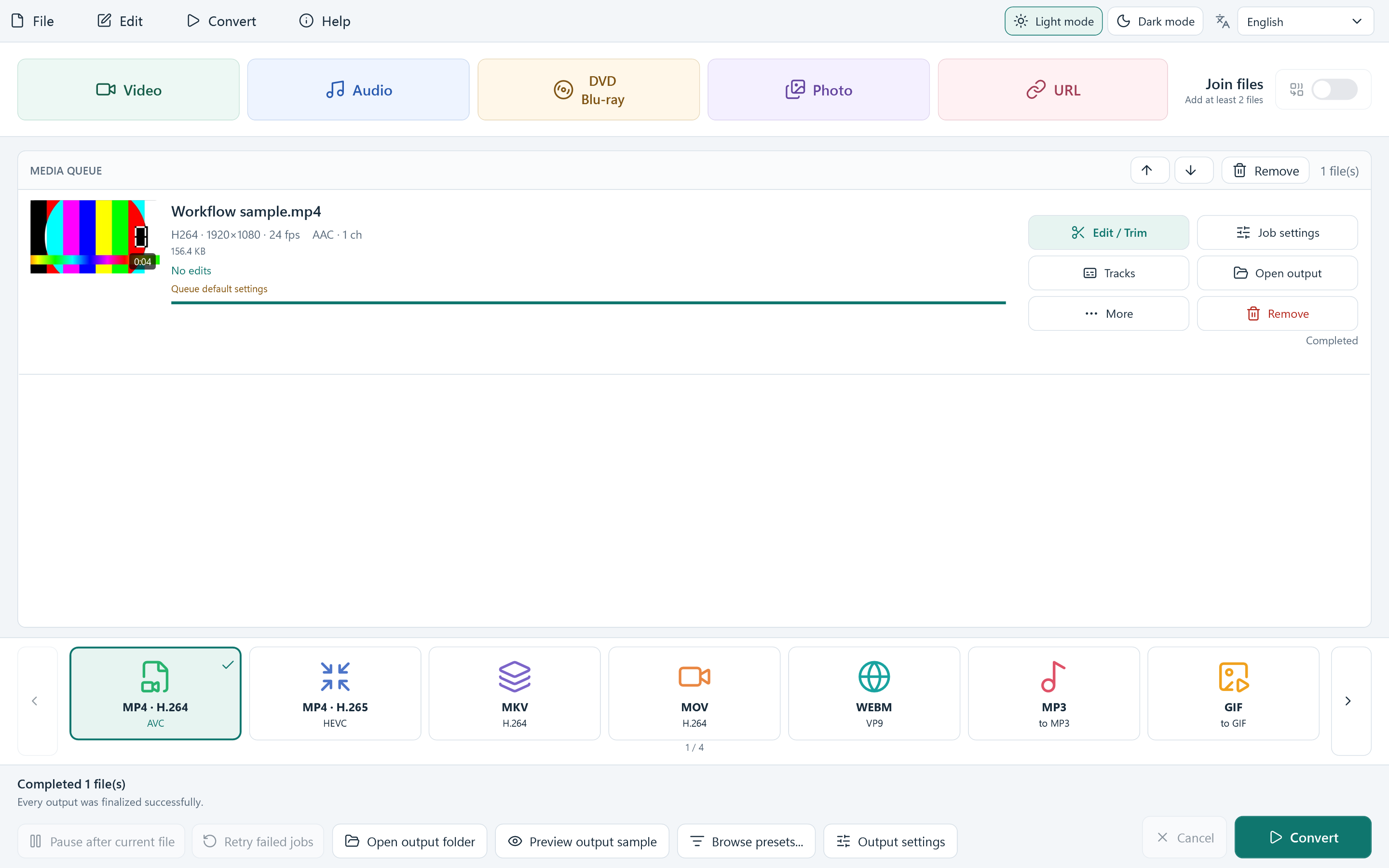
These are current Free Video Converter 8.1.0 screens from this website's application. The four-second test pattern was created for this guide and converted with the published app.
1. Add and check your source
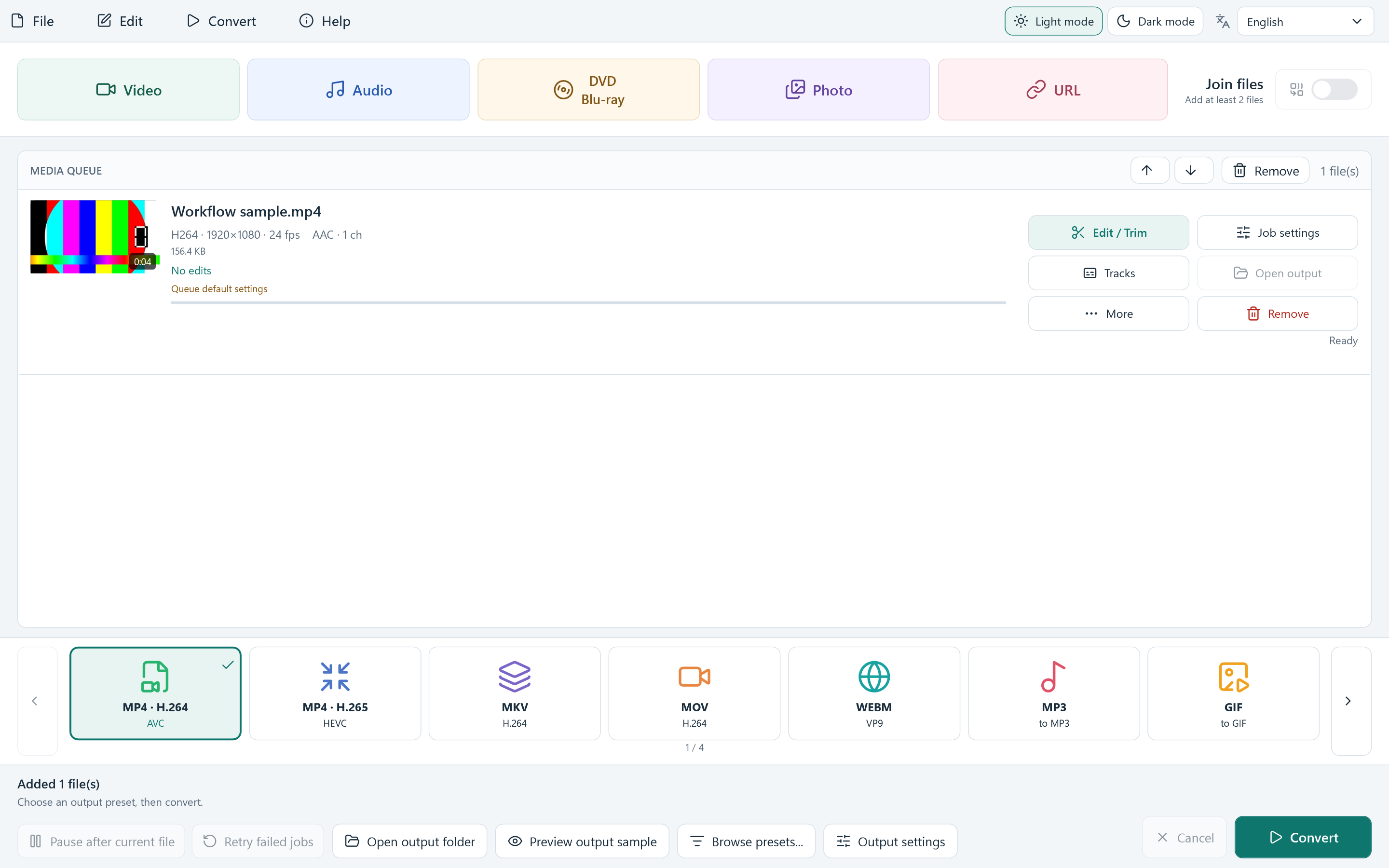
Select Video or drag a local video into the queue. Read the source resolution, codec, duration and audio details on the row. Select MP4 · H.264 along the bottom when you want an everyday playback copy.
Adding a file prepares the job; it does not change your original. A MOV or MKV file is the input container, while MP4 is the output container you choose.
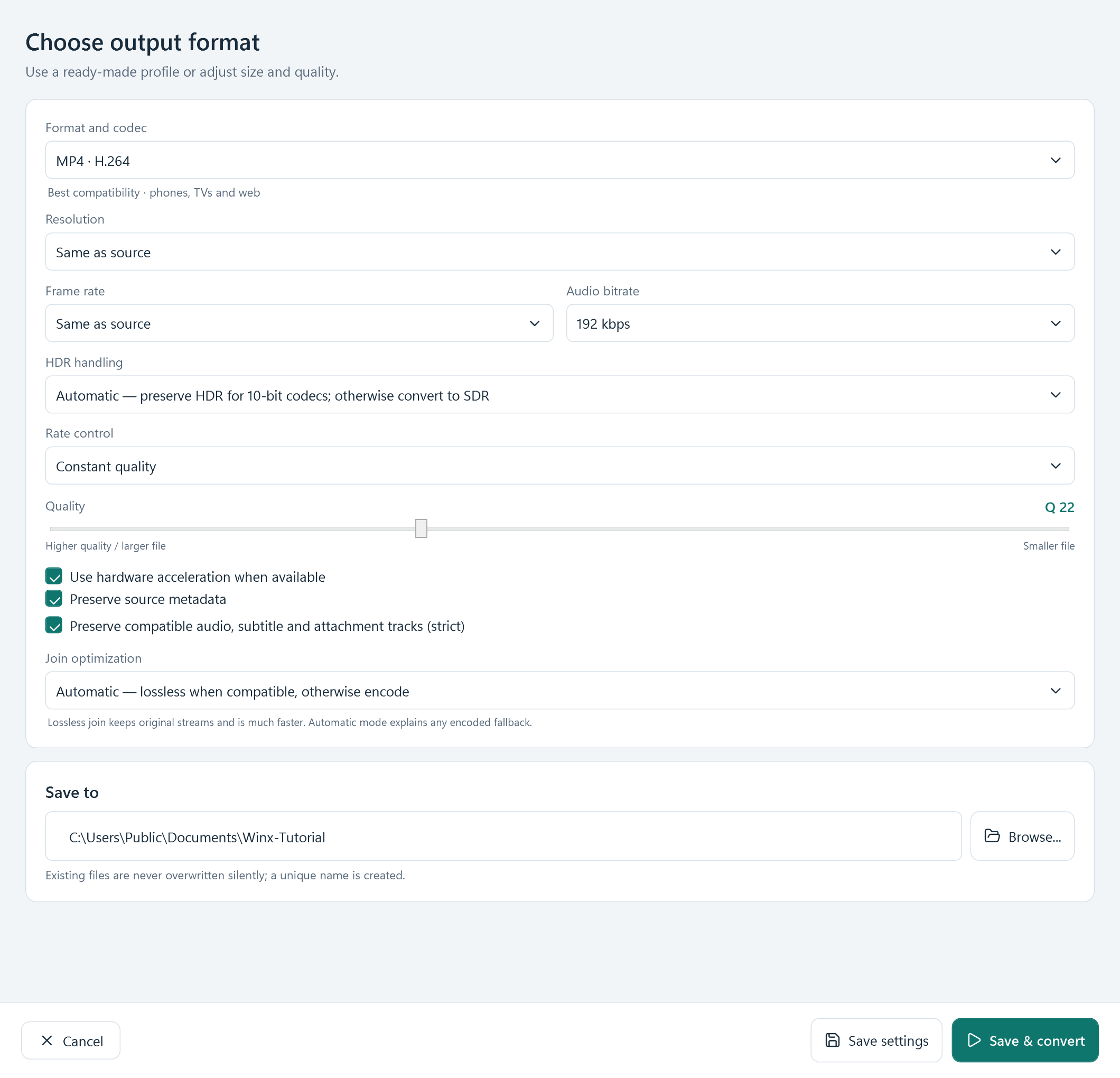
2. Review format, quality and Save to
Open Output settings. Start with Same as source for resolution and frame rate unless you need a smaller copy. Check the audio setting and Save to destination. The actual H.264 settings are shown here.
Use Save settings to return to the queue, or Save & convert to start. A larger frame size cannot recover detail missing from your source. Hardware acceleration depends on a compatible detected encoder.
3. Convert, then check the saved copy
Select Convert and wait for the row to say Completed. Use Open output on the completed row or Open output folder at the bottom. Play the file and check picture, sound, duration and orientation before replacing any original.
For a batch, check each item's result and the overall failed count. A successful first file does not mean every queued file succeeded.
Download Free Video Converter