Quick answer: Choose MP4 · H.264, keep source dimensions and frame rate for an initial test, and convert the readable HEVC source to a new file. H.264 often suits older playback devices, but re-encoding may increase file size and does not preserve the original bitstream.
Recommended starting settings
| Setting | Start here | Why |
|---|---|---|
| Preset | MP4 · H.264 | Another HEVC-in-MP4 profile will not solve an HEVC-decoding problem. |
| Resolution / frame rate | Same as source, or the destination limit | An older player may also have resolution or frame-rate limits. |
| HDR source | Convert HDR to SDR for broad compatibility | The H.264 preset is not an HDR-preserving 10-bit output. |
| Quality | Start with the preset, then compare a sample | Avoid assuming equal file size means equal quality across codecs. |
Why an MP4 may still need conversion
HEVC is also called H.265. Both HEVC and H.264 video can use the .mp4 extension, so an MP4 filename does not prove that an older player can decode it. The receiving device must support the video, audio, resolution and other properties together.
Before encoding, check whether the issue is limited to one player or whether the file is incomplete. A readable source is essential: conversion does not reconstruct missing footage from a damaged recording.
Create an H.264 copy
Use the explicit H.264 preset rather than selecting another MP4 profile that still uses HEVC.
- Add the source file and confirm that the queue identifies HEVC video.
- Select MP4 · H.264 in the first output page or Browse presets.
- Choose the resolution and frame rate. Keep source values unless the destination needs a lower setting.
- Open Tracks to choose the audio and captions you need; review HDR handling for an HDR recording.
- Select the output folder, compare a short encoded sample and click Convert. Check the result in the intended player.
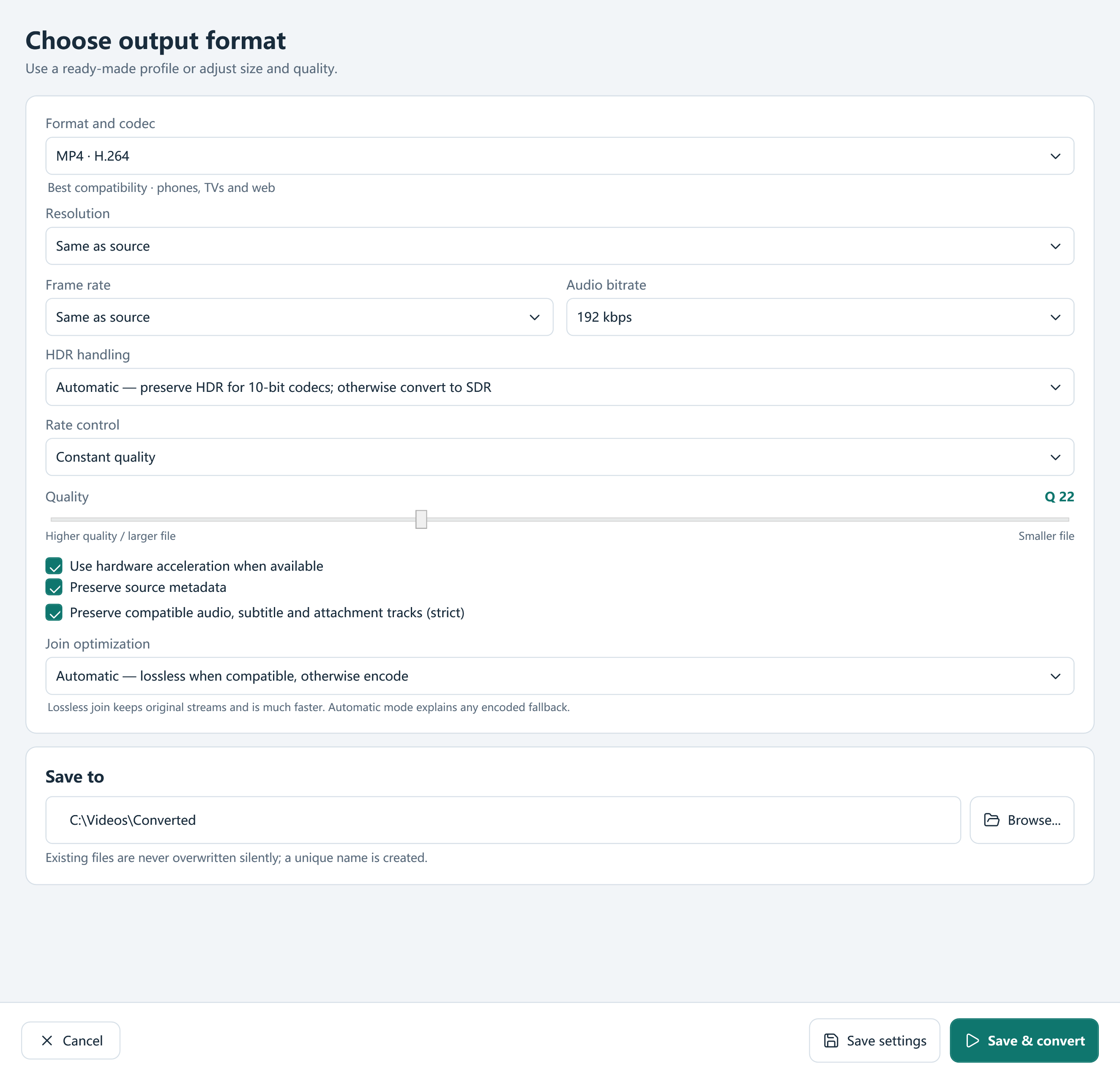
Expect a quality and size tradeoff
HEVC-to-H.264 is a new encode, not a container-only remux. At settings that look similar, the H.264 delivery file may be larger; demanding a very small output can remove detail. There is no reliable percentage that describes every source.
Use constant quality when the visible result matters most. Use target size for a specific delivery budget, or average bitrate when another workflow specifies a bitrate. If an output looks soft, review the sample before lowering the resolution again.
Do not ignore HDR
H.264 compatibility output and HDR preservation solve different problems. Output settings can tone-map HDR to SDR for a more broadly viewable copy. If you need to retain HDR, choose a suitable HDR-preserving HEVC, AV1 or VP9 workflow and compatible playback instead.
Check highlights, skin tones and dark areas after conversion. A picture that looks washed out may need the right HDR policy rather than a higher bitrate.
Keep HEVC when it already fits
If every destination plays the original correctly and the file size is acceptable, conversion may be unnecessary. The app can also trim, extract audio or create another delivery version while you retain the source. Use encoding to solve an identified compatibility need.
Frequently asked questions
Is H.265 the same as HEVC?
Yes. In this workflow they name the same video codec family.
Does renaming an MP4 change HEVC to H.264?
No. The video must be encoded with H.264; changing the extension does not change the stream.
Will H.264 always be smaller?
No. Size depends on duration, audio, resolution and encoding settings. Choose a target-size mode when the delivery size is the main constraint.