Quick answer: Add a readable 4K source and choose a suitable H.264, HEVC or AV1 output. Keep source resolution and frame rate to retain the source dimensions and motion, then review HDR and quality settings. No product watermark is added; a lower-resolution source does not gain new detail from a 4K setting.
Recommended starting settings
| Setting | Start here | Why |
|---|---|---|
| Resolution | Same as source for an existing 4K recording | A fixed 4K preset can change other defaults, so review them. |
| Frame rate | Same as source unless the destination needs a change | Do not select 60 fps merely because a preset includes it. |
| Codec | H.264 for compatibility; HEVC/AV1 for known players | Support and encoding workload differ. |
| HDR | Preserve only with a suitable 10-bit output, or convert to SDR | Pixel dimensions alone do not describe HDR compatibility. |
What no added watermark means
The app does not place its own logo or text on your converted video. A user-selected PNG image watermark is optional, so a logo appears only when you enable your own image. This is different from removing a watermark already present in a source.
A 4K preset also does not promise improved detail from a low-resolution recording. Source-preserving HEVC and AV1 profiles can retain an existing high-resolution source; they do not provide AI upscaling or invent missing texture.
Choose the destination before the codec
H.264 is a useful compatibility starting point, while HEVC and AV1 need suitable playback. Keeping 4K may be appropriate for a large display or a production delivery; 1080p can be more practical for a smaller sharing copy.
Keep the source frame rate unless your destination specifies another one. Choosing 60 fps for a lower-frame-rate recording is not an AI motion-interpolation workflow. Compare an encoded sample with the actual viewing purpose in mind.
Make a checked 4K output
Use a short, demanding section with motion and fine detail for your first test.
- Add the source and confirm its displayed dimensions, frame rate and codecs.
- Choose a 4K H.264 or HEVC profile, or a source-resolution profile when appropriate.
- Review quality, audio tracks and output folder. Avoid unnecessary crop or filters if you want to retain the original framing.
- Choose the HDR policy and preview a short encoded sample. Inspect color, detail and sound.
- Convert the full file and test it on the target device. Keep the original recording and the chosen output settings.
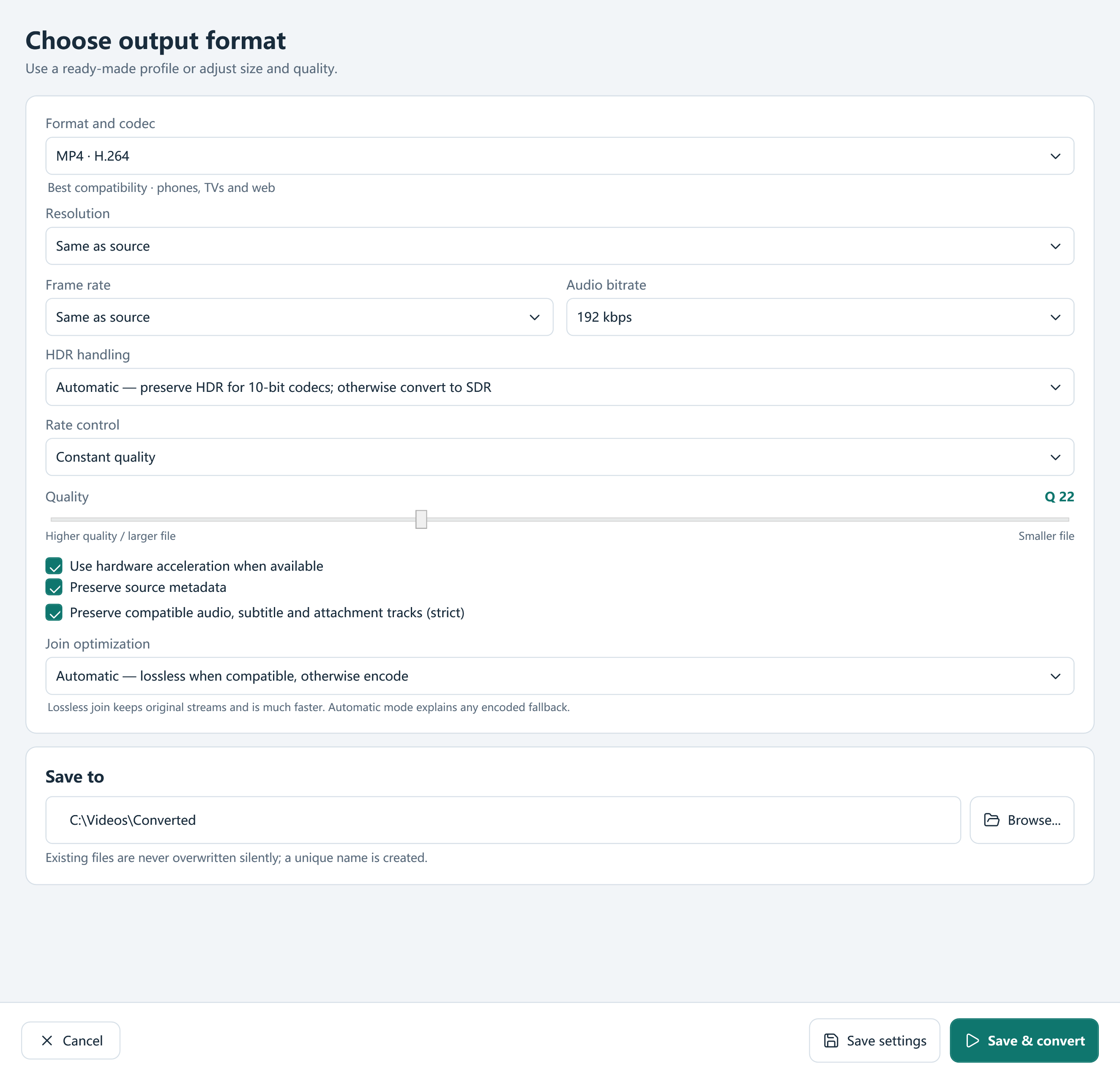
Check HDR separately from pixel dimensions
4K describes dimensions, while HDR concerns picture representation. An HDR source can need a compatible 10-bit preserving profile or a deliberate SDR tone-map for simpler delivery. A 4K label does not ensure correct highlights or colors.
Use Automatic, Preserve HDR or Convert HDR to SDR in Output settings. Review the result on a suitable display rather than judging HDR only from an unrelated screenshot.
Allow for the workload
Large frames and complex codecs take resources. Compatible NVIDIA, Intel and AMD encoder paths are detected per codec; the app can use software when a general profile has no suitable hardware path. It does not promise a fixed speed multiplier.
Keep space for the output and optional editing proxy. Preview proxies make supported editing smoother but do not replace the original used for final encoding. For a long recording, checking an eight-second sample can prevent an unnecessary full-length retry.
Frequently asked questions
Does the converter add its logo?
No. The app adds no product watermark; your own PNG watermark is optional.
Will a 4K preset turn 720p into genuine 4K detail?
No. This release does not include AI upscaling. Choose output settings for the real source and destination.
Can I make a smaller 4K file?
You can adjust quality, bitrate, target size and codec. The achievable size and appearance depend on the source and compatible playback.