Quick answer: Add a readable WebM and select MP4 · H.264 to create H.264 video with AAC audio. Check whether the WebM has sound: some online streams contain video only. Standard H.264 MP4 output does not preserve a transparent WebM background.
Recommended starting settings
| Setting | Start here | Why |
|---|---|---|
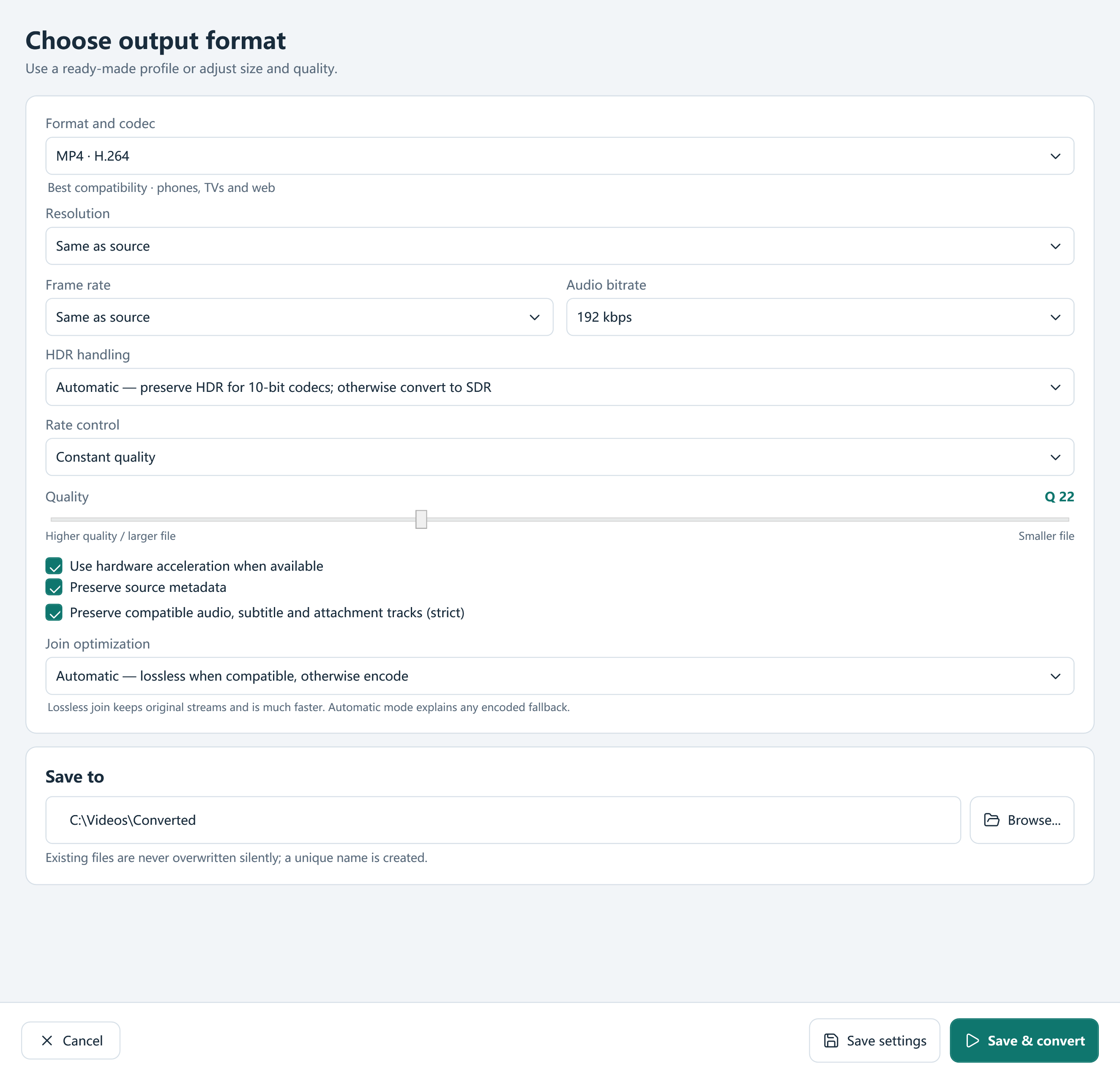
| Output | MP4 · H.264 | Re-encodes VP9 or AV1 input into an H.264/AAC playback copy. |
| Audio | Verify the source actually has an audio track | A video-only stream cannot supply missing sound. |
| Resolution / frame rate | Same as source for the first test | Do not enlarge a small web recording by accident. |
| Transparency | Keep the original WebM if alpha is required | The normal H.264 MP4 output is not a transparent-video replacement. |
Understand what changes inside the file
WebM is a container often used with VP9 or AV1 video and Opus audio. MP4 is another container, not a codec by itself. The MP4 · H.264 preset creates a new H.264/AAC delivery file rather than simply renaming or relabeling the WebM.
Keep the original if it is part of a web or design project. An MP4 playback copy can be useful for sharing while the WebM remains the right asset for the original workflow.
Make an MP4 playback copy
Start with a short representative source and check the receiving app after conversion.
- Add the WebM to Free Video Converter. Confirm the displayed duration and whether it contains audio.
- Choose MP4 · H.264. Keep source frame rate and resolution for the initial test, or select a deliberate smaller delivery resolution.
- Open Tracks if there are multiple audio streams. Include the soundtrack you need and review preservation settings.
- Use Edit / Trim for a shorter range, crop or other required change. An optimized preview may be prepared for codecs Windows does not preview reliably.
- Choose an output folder and Convert. Play the complete result, checking sound, motion, color and the start and end of the clip.
Why an MP4 can be silent
Some WebM files contain video only; no conversion can recover audio that was never present. If audio is present, verify it is selected and that the output configuration includes sound. The H.264/AAC preset is a practical starting point for compatible playback.
If a particular player is silent while another plays the result correctly, distinguish a playback problem from an encoding problem before converting again.
Treat transparency as a separate requirement
Some WebM assets use an alpha channel. Standard H.264 MP4 delivery does not preserve that transparent-video workflow. Review the converted background in the actual destination instead of assuming that a matching filename or resolution preserves every property.
When transparency is essential, keep the original asset and choose a workflow specifically designed for alpha. Do not repeatedly encode copies in the hope that an ordinary MP4 preset will add missing transparency.
Check the source and the log
An incomplete browser download may fail regardless of output settings. Make sure the file is local and readable, then retry a simple preset. Review the job log if conversion fails. Do not confuse an editing-preview issue with the ability of the bundled conversion tools to read the source.
Convert a folder consistently
Once one WebM works in the destination, reuse its output settings for a batch. Keep Join files disabled for separate outputs. Give unusual clips their own job settings and review samples with different frame rates or audio layouts.
Frequently asked questions
Can I rename WebM to MP4?
No. The container and, where needed, its streams must be converted.
Will transparent WebM stay transparent?
Not with ordinary H.264 MP4 delivery. Keep an alpha-capable original for that workflow.
Why does my WebM have no audio?
It may be video-only, or the soundtrack may be unselected. Check the source metadata and Tracks before encoding.