Organize the inputs before encoding
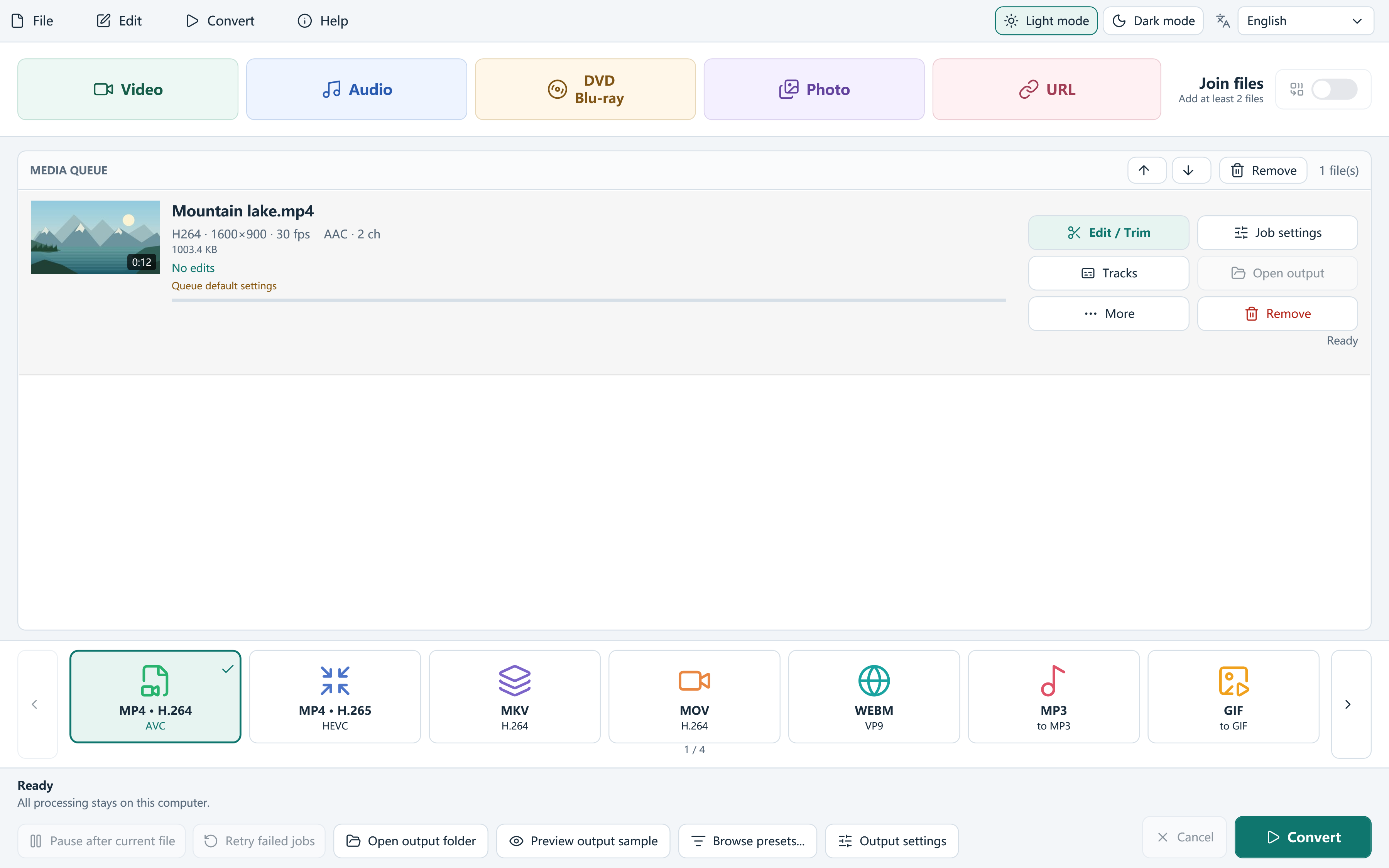
Add multiple media files, drag them into the queue or use Add folder. Check the thumbnails and durations, remove duplicates you do not want and put clips in order. Leave Join files off when each input should become a separate output.
For online sources, the queue stores the selected input quality and thumbnail before downloading media. Their download step begins with Convert. Local files and online sources can share a queue, but pending online items need a local download before editing.
Use defaults, then handle the exceptions
Choose a general output preset for the queue, then open Job settings on items that need their own output. This is useful when one recording needs 720p delivery while another should stay at source dimensions.
- Set the queue’s output format, quality approach and destination folder.
- Inspect audio/subtitle Tracks for representative files and any item with a different stream layout.
- Use Job settings for exceptions instead of repeatedly changing the global setup.
- Apply selected compatible edits and settings in batch where appropriate; review any incompatibility report.
- Save a project before starting. Click Convert, then pause after the current file if you need to stop between jobs.
Keep outputs predictable without replacing originals
Choose folders that are easy to identify after the run. The app uses an available output name when a path already exists, and a final result appears under its completed name after processing succeeds. This helps prevent accidental replacement, but a clear folder plan still saves time.
Projects store settings and source references rather than embedding every video. If you move the originals, keep the project’s references in mind and review missing-source messages when reopening.
Select encoding for the actual computer
Hardware availability is tested per encoder. General profiles can use a compatible GPU path or software fallback; an unavailable dedicated hardware profile is marked accordingly. Target-size and two-pass choices may favor a supported software encoder.
Avoid assuming that adding more simultaneous work improves a queue. Let the app process its jobs, watch progress and keep adequate disk space for sources, outputs and preview files.
Review results and reuse what worked
Conversion history records outputs and failures and can export CSV. Open failed job logs before changing settings, then retry after correcting the cause. Check several outputs, including files with different tracks or edits. Save a custom preset for the next batch, or use a watch folder for repeated incoming local files.
Frequently asked questions
Can every video have its own settings?
Yes. Job settings override queue defaults for that item’s supported output choices.
Does batch conversion join everything?
Only when Join files is enabled. Leave it off for independent results.
Can I return to an unfinished queue?
Save a project, or use the automatic recovery offer on a later launch. Keep the referenced source media available.