Quick answer: Add a video, open Edit / Trim and mark the portion to keep. Apply the edit, choose the output format in the main window and click Convert. The trim is saved into a new result; the source file is retained.
Recommended starting settings
| Setting | Start here | Why |
|---|---|---|
| Range | Start and end positions for the section to keep | The selected area is retained, not removed. |
| Precision | Use exact time fields and frame stepping | Check the cut around the intended frame. |
| Output | MP4 · H.264 for a compatibility copy | Choose another preset when the destination needs it. |
| Several ranges | Review keep-segment order and export choice | Separate clips and a combined result are different outcomes. |
Keep one useful clip
- Add the video, then select Edit / Trim on its queue row.
- Move the playhead to the beginning you want and choose Set start; move to the end and choose Set end.
- Refine the boundary with frame stepping or the start/end time fields. Play across each boundary.
- Apply edits and return to the queue. Select the output format and folder.
- Click Convert and inspect the beginning and end of the new clip.
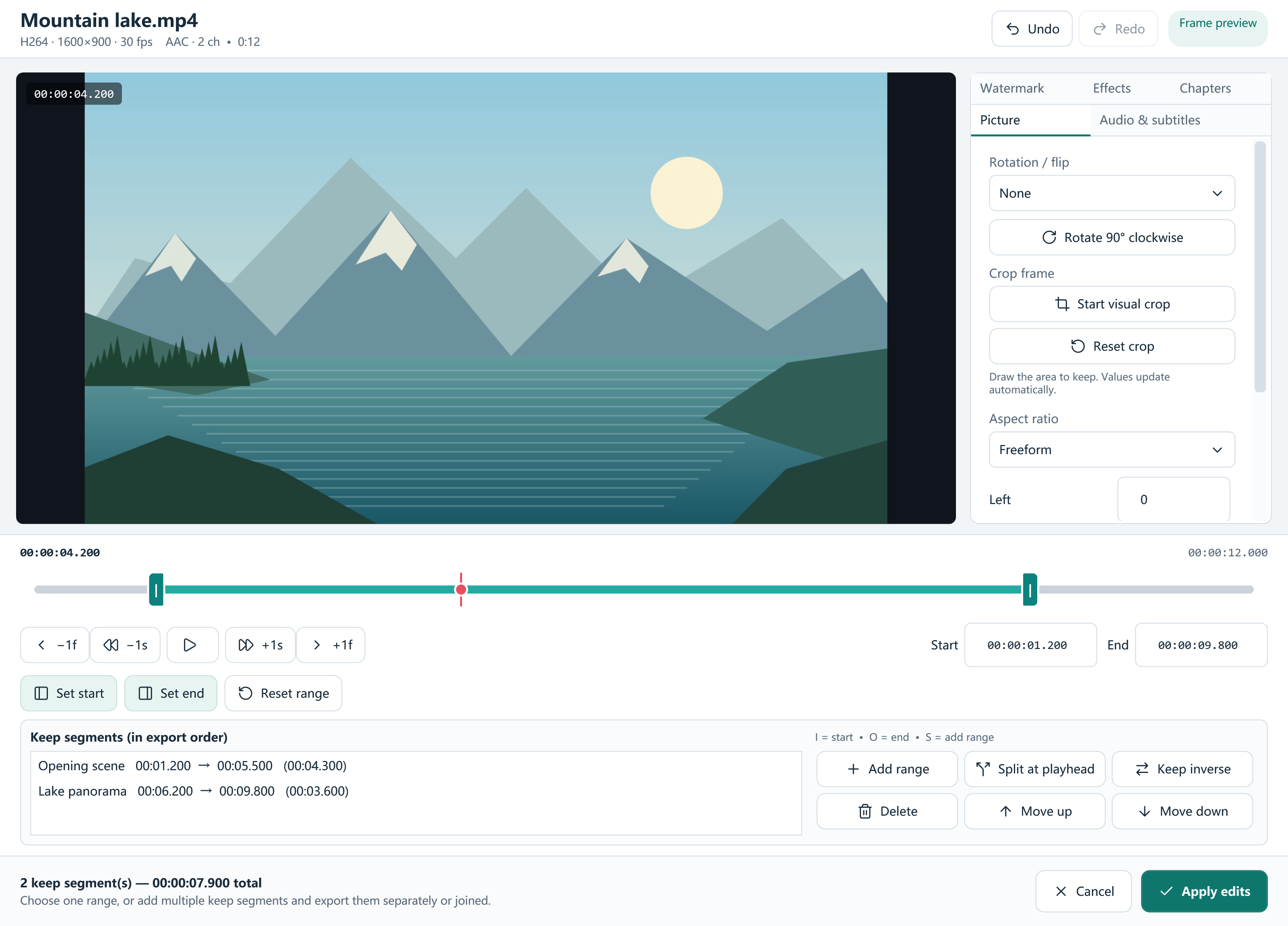
Keep several ranges or remove a middle section
For a second useful section, mark its start and end and add the range to the keep-segment list. Repeat for the remaining sections, then review their export order. Use the list’s move and delete actions to correct the selection.
To leave out an unwanted middle portion, keep the sections before and after it. Review whether the task should create separate clips or one combined result. The inverse selection and split controls can help, but play the selected ranges before committing.
What precise trimming means for quality
Original-file preservation means the source is not rewritten. It does not mean every trimmed output copies its compressed bitstream. Exact edits and picture filters commonly require encoding, so choose quality settings and compare a sample.
Lossless stream copying is conditional and is not a universal frame-accurate trim promise. Keep the original as your master when you need to revisit the edit.
Frequently asked questions
Can I remove the middle of a video?
Keep ranges on either side of the unwanted section, then review the combined or separate export choice.
Can I undo a selection?
The editor includes Undo and Redo. Check the keep-segment list and preview before applying edits.
When can an online video be trimmed?
An online queue item needs a downloaded local source before editing. Pending media downloads when conversion starts; reopen the local source for editing afterward.