Identify the source you are working with
Copy the camera card or source folder to reliable storage before editing. Keep the original folder structure as an archive. Individual MTS/M2TS files and logical titles from an unencrypted Blu-ray BDMV folder are different input workflows; do not treat every similarly named directory as a finished disc.
Add a representative clip and inspect its dimensions, frame rate, duration and audio. Use the displayed metadata and actual preview rather than guessing that every camcorder file has the same properties.
Create an MP4 delivery version
Use one clip to establish your settings before converting the entire recording session.
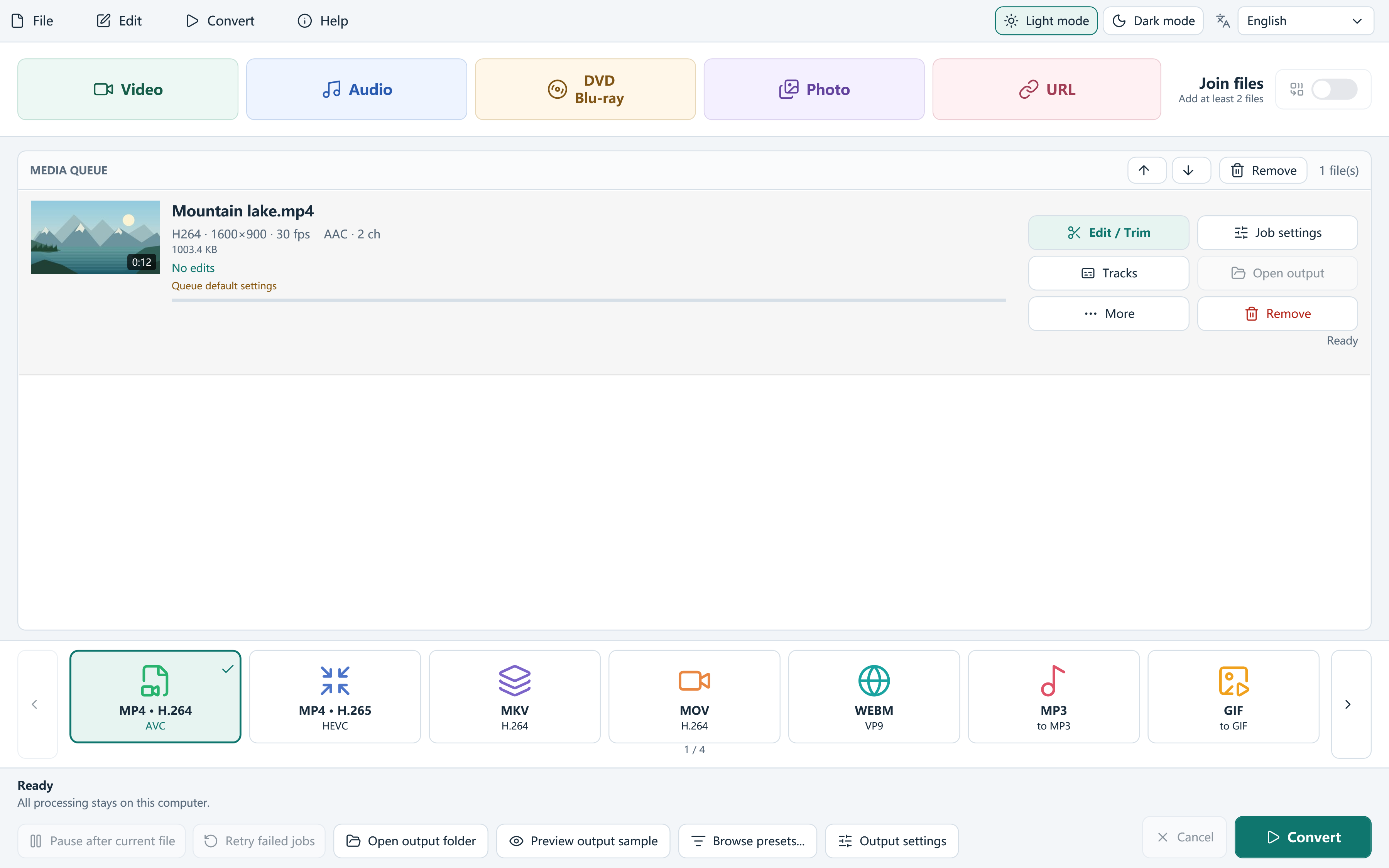
- Add the MTS or M2TS files with Video or drag and drop. For a supported unencrypted disc structure, use DVD / Blu-ray folder import instead.
- Choose MP4 · H.264 for a general playback copy. Keep source resolution and frame rate until you have checked the picture.
- Open Edit / Trim to remove unwanted sections. Review the Effects controls if the source is interlaced.
- Check audio tracks, output folder and quality. Use an encoded sample with motion, then Convert.
- Open the finished MP4 and check the complete duration, sound and transitions around any cuts.
Deinterlace only when the picture needs it
Interlaced motion can show comb-like edges when fields are displayed as one progressive picture. The editor offers deinterlace/decomb and inverse telecine tools, but they solve different source conditions. Do not enable every filter by default.
Compare a sample with moving people or a camera pan. If a progressive clip already looks correct, extra processing may soften it without solving a problem. Check motion as well as a paused image.
Join only the clips that belong together
Arrange files in the intended order and turn on Join files when you want one continuous delivery video. Encoded joins can normalize dimensions and frame rates; eligible compatible clips can use a lossless strategy. The app checks whether copying streams is suitable.
Check the joins for duplicated or missing moments. File numbering alone is not proof of recording continuity, and joining several filenames does not restore missing material.
Keep a master and a playback copy
An MP4 is convenient for watching, but retain the original recordings and camera structure when you may return to editing. A smaller delivery file should not be the only archive of important footage.
Review tracks and chapter needs
Open Tracks when the recording has more than one stream. Compatible metadata and chapters can be preserved where supported, while conversion may change the media structure. Check the final result instead of assuming that a new container retains every camera-specific detail.
Frequently asked questions
Are MTS and M2TS automatically encrypted?
No. The extension alone does not establish protection. The app processes readable media and does not decrypt protected discs.
Should I always deinterlace?
No. Inspect the source and compare motion in a sample first.
Can I join several recordings?
Yes. Reorder the queue, enable Join files and choose the appropriate join strategy.