Quick answer: Add the video, select MP3 audio as the output, choose the soundtrack you need and click Convert. This creates a separate MP3 file. The original video remains available, and the MP3 contains sound without a picture.
Recommended starting settings
| Setting | Start here | Why |
|---|---|---|
| Output preset | MP3 audio | Creates an .mp3 file rather than a silent video. |
| Audio track | The required language or soundtrack | Files may include commentary or alternate languages. |
| Bitrate | Use the preset’s 192 kbps as a first test | Higher settings cannot restore detail already missing from the source. |
| Clip length | Keep the whole source or set a range in Edit / Trim | Export only the portion of sound you need. |
Save the soundtrack as an MP3
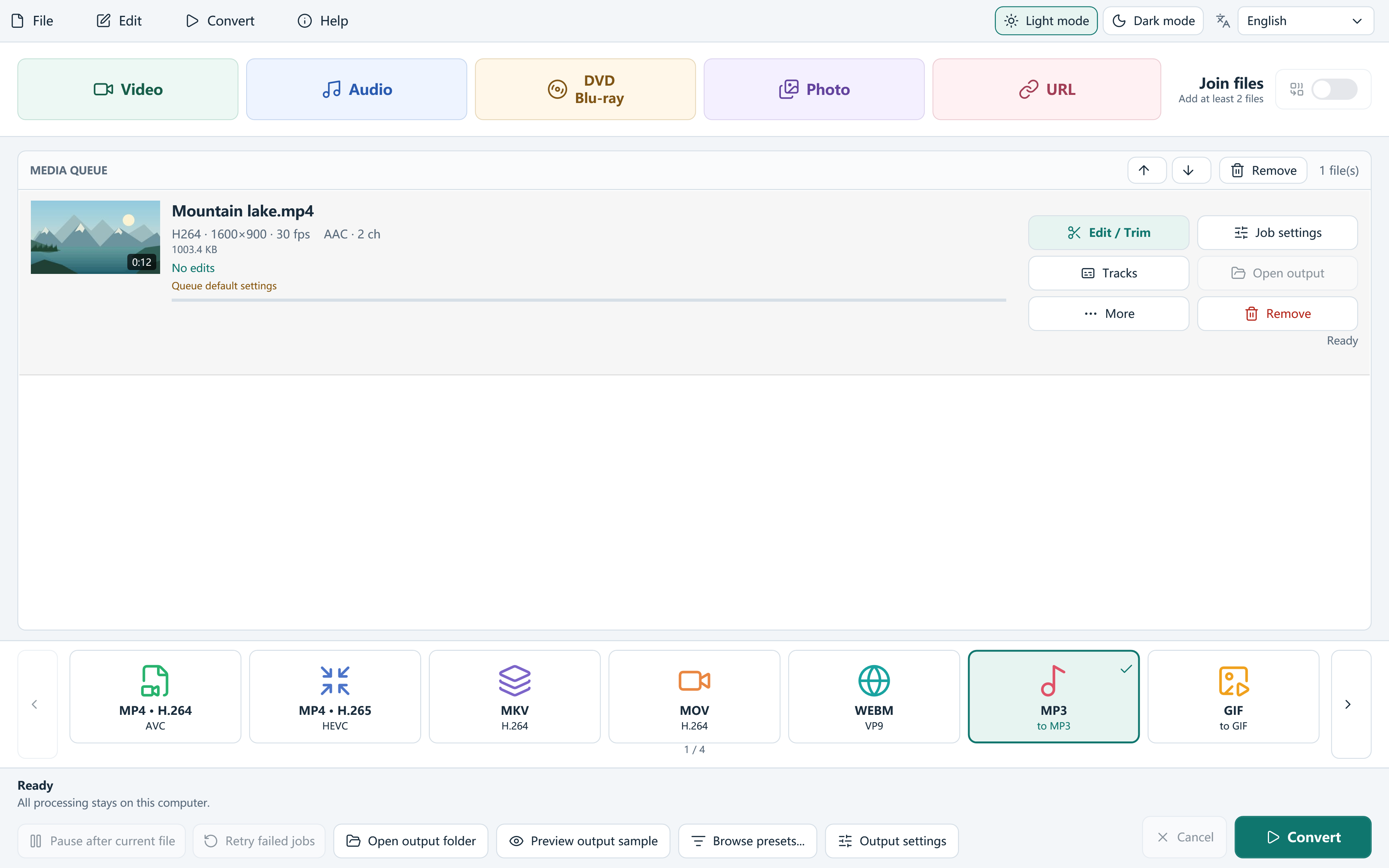
- Add the local video using Video or drag it into the queue. Confirm that audio information is present.
- Open Tracks if the source has several soundtracks and select the one you want to hear.
- Choose MP3 audio from the output targets or Browse presets. Review audio bitrate in Output settings.
- For an excerpt, open Edit / Trim, set the start and end, and apply the edit.
- Choose an output folder and click Convert. Open the MP3 and listen to the beginning and end.
MP3 conversion and stream extraction are different
Choosing MP3 encodes audio into the MP3 format. An existing AAC, Opus or other soundtrack is not simply renamed to .mp3. Re-encoding changes the bitstream, so keep the original video when it is your best available source.
If you need a compatible original audio stream without re-encoding, inspect the separate media-extraction tool and its available stream-copy option. The copied stream may be a different format, not MP3.
Check missing sound, unwanted languages and quality
A video-only online stream has no audio to extract. For a permitted online source, read its available formats and select a suitable audio track before adding it. The media downloads when Convert starts; MP3 remains the main-window output choice.
If you hear commentary or another language, revisit Tracks. If the source itself sounds poor, a higher MP3 bitrate will not reconstruct lost detail. Avoid processing the same audio through several lossy conversions.
Frequently asked questions
Does MP4 to MP3 keep the video?
The original MP4 is retained; the new MP3 contains audio only.
Can I turn a silent video into music?
No. An audio track must exist in the source or be supplied separately by the source site.
Can I save a different audio format?
Yes. The app also offers M4A/AAC, FLAC, WAV, Ogg, Opus and other audio presets. Choose the format your player needs.