Quick answer: Add the AVI, choose MP4 · H.264 and Convert to make a new playback copy. AVI is a container and may hold different codecs, so the source must be readable. Renaming .avi to .mp4 does not convert the video.
Recommended starting settings
| Setting | Start here | Why |
|---|---|---|
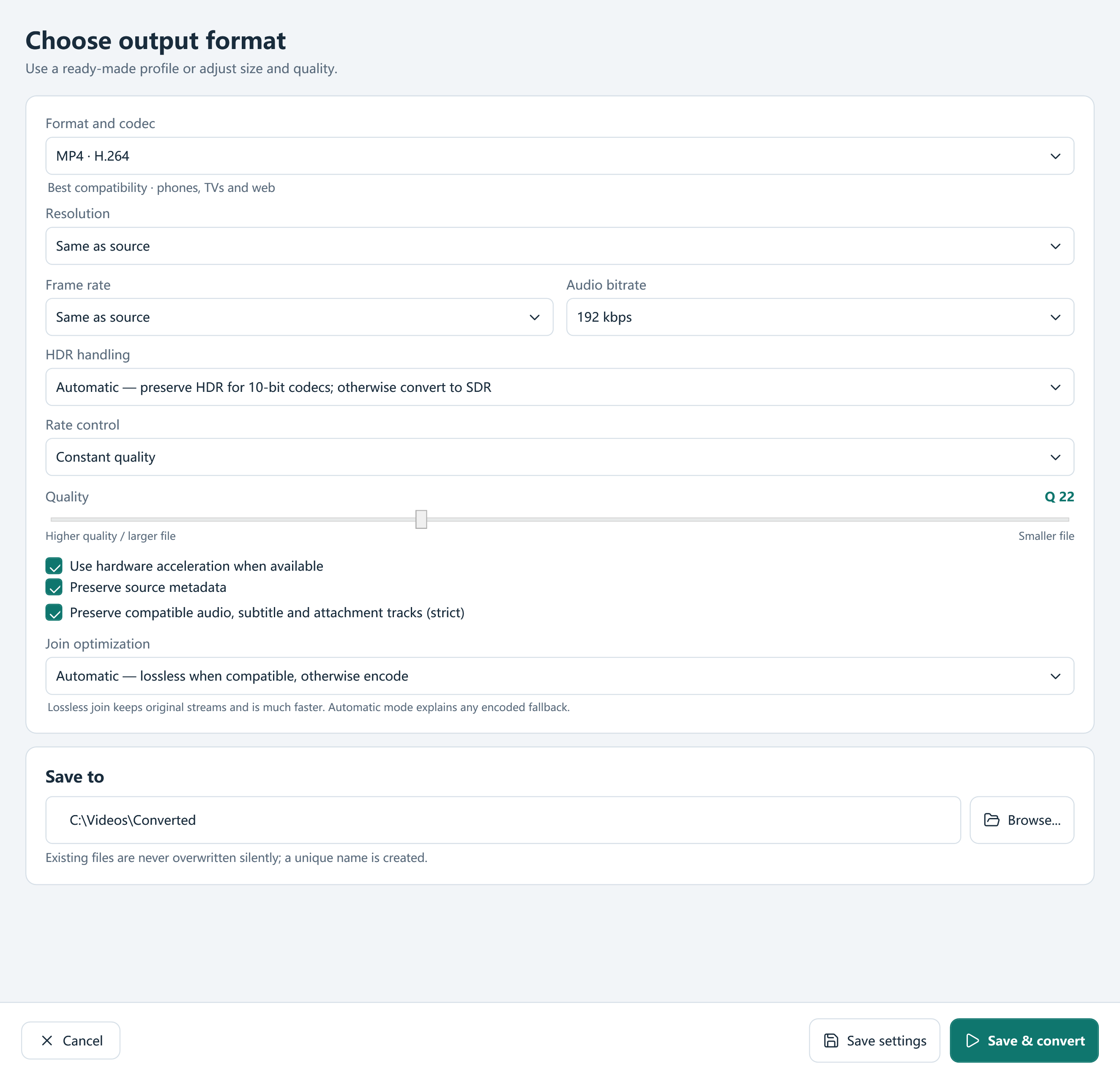
| Preset | MP4 · H.264 | Creates an H.264 video/AAC audio delivery file. |
| Resolution | Same as source for the first test | An older small recording does not gain detail from enlargement. |
| Frame rate | Same as source unless the destination needs a change | Preserve motion before making deliberate compatibility changes. |
| Deinterlacing | Use only when the preview shows interlacing | Older camera recordings may need a different picture treatment. |
Create and check an MP4 copy
- Add the AVI with Video or drag and drop. Check duration, dimensions and displayed audio information.
- Select MP4 · H.264, not a different container that still uses an unsuitable codec.
- Keep source resolution and frame rate for the first conversion. Select the desired soundtrack in Tracks.
- Inspect Edit / Trim for orientation or interlacing before applying picture adjustments.
- Choose an output folder, compare an encoded sample if useful, and click Convert. Play the completed MP4 in the intended player.
Why two AVI files can behave differently
AVI describes the container, not one fixed video codec. An old camera recording, a screen capture and a large editing file can therefore require different decoding and audio handling. Read the queue information and test one representative file first.
Choose a delivery size that suits the original. A 640×480 source can remain 640×480; selecting 4K does not restore detail. For comb-like edges during motion, review the deinterlacing control instead of treating every AVI as progressive video.
If the AVI will not open or has no sound
Check that the source file is complete and that another trusted player can read it. If the app cannot probe the source, an encoding preset alone may not solve the problem; inspect the job log for the reported decoding error.
If the source has audio, verify that its track is selected. A successful picture conversion does not prove that the selected soundtrack or subtitle choices are correct. Keep the original until you have checked the whole output.
Frequently asked questions
Will conversion repair a damaged AVI?
Conversion requires readable media and cannot recreate missing footage. Check the source and the reported error first.
Is changing the extension enough?
No. The converter must read the source and write a valid MP4 with the selected codecs.
Will the MP4 always be smaller?
No. Size depends on the source, duration, resolution and encoding settings. Use the compression controls when size is the goal.