Set a size budget
Look up the limit for the complete upload or attachment. For a 25 MB ceiling, use a target smaller than the limit so there is room for the way the service measures files. For a service that explicitly uses decimal MB, 25 MB is 25,000,000 bytes. Check exact bytes in Windows file Properties, looking at Size. Use a link or another delivery method if the video is too long to stay clear at that size.
Use MP4 with H.264 and Target size
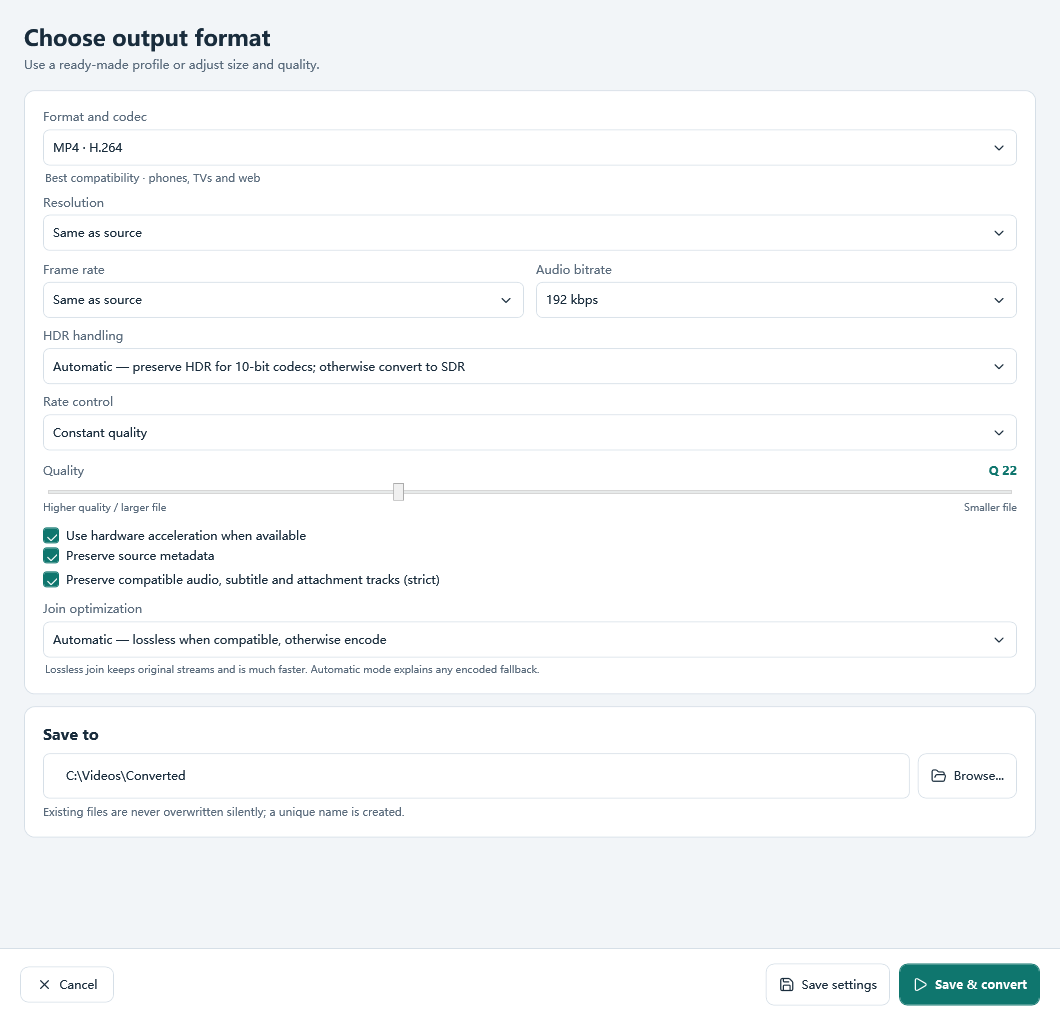
Add the local video to Free Video Converter and select MP4 · H.264. In Output settings, choose the Target size rate mode and enter 22 MB for the 25 MB example. Audio counts toward the budget. Start with 96 kbps for speech if it sounds clear in a sample. If the bitrate has to be very low, try a smaller frame size before removing sound or converting the source again. Use software encoding with two-pass when the selected preset supports it. Choose Save to, start conversion and wait for Completed.
Compare two encodes from one source
To make the difference visible, Free Video Converter 8.1.0 encoded the same 24-second synthetic clip at 960 × 540 and 30 fps in two modes. The limits in this repeatable small test were scaled down. The MKV source was 9,738,468 bytes. The MP4 with Quality 18 was 7,373,079 bytes. A 2 MB Target size using software two-pass was 2,017,850 bytes. Both outputs contained H.264 video and one AAC audio track, lasted 24 seconds and decoded to the end. The sample is a test pattern with a tone. Use a section of your own footage to compare quality on the intended screen.
Verify the saved file before sending
Check the new file’s size, then open it in the player your recipient uses. Scrub to a point with movement and to a point with sound. Check the first and last few seconds for missing footage. If the service rejects the file by size, lower the target and start from the original. If it rejects the format, check the video and audio codecs in addition to the .mp4 extension. If the picture is too soft or speech is hard to hear, consider a shorter clip or a download link.
More help
Compare all three compression modes or check MKV audio and subtitles before exporting.