Windows guide
MP4 Looks Stretched After Conversion?
Check source shape and your chosen output dimensions when faces look wide or a circle looks oval in the converted file.
Download Free Video ConverterWindows 10/11 (64-bit) · 2.07 MiB online installer. Downloads about 95.62 MiB of required program components. A required .NET runtime may download separately.
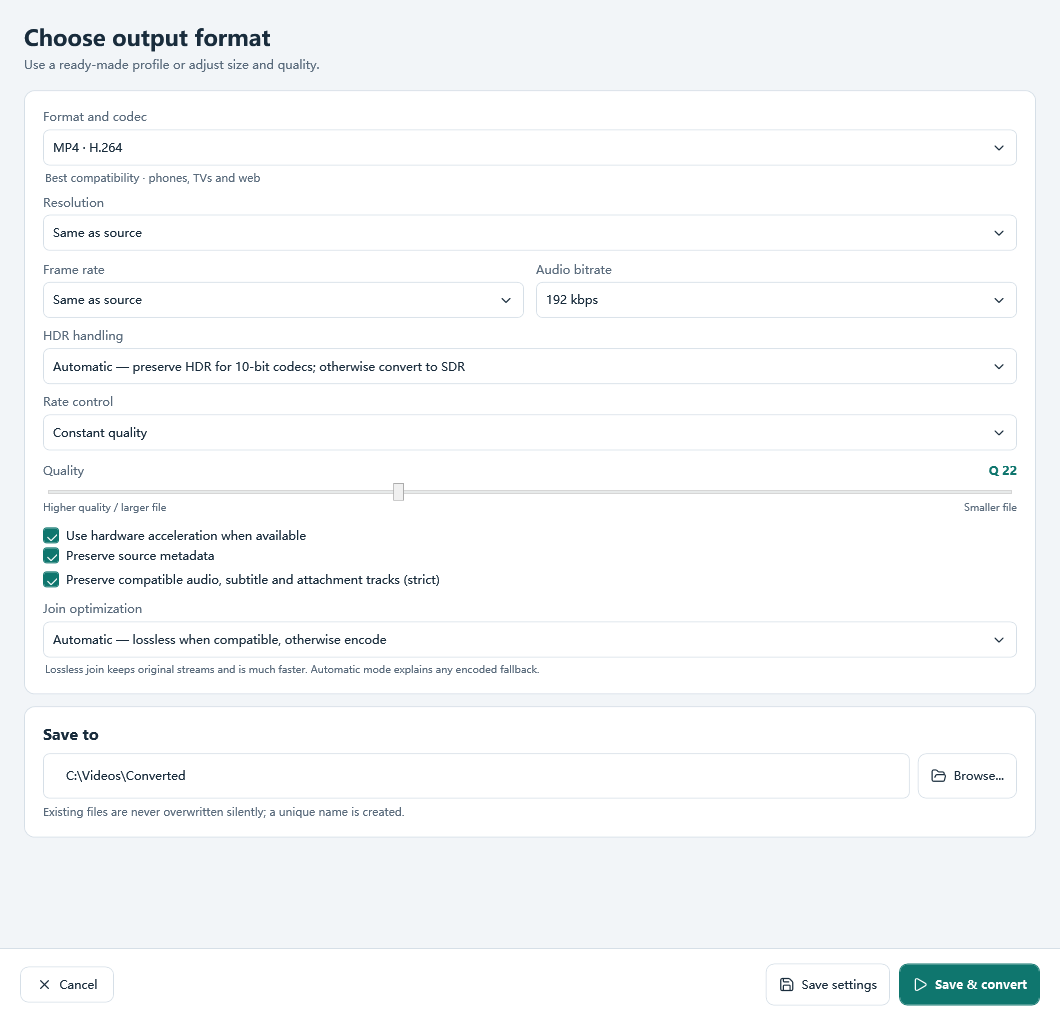
Compare the same frame before and after
Open both files in the same player and pause on a circle, title card or face. Set the player to its default aspect-ratio mode. If the source looks right and the converted copy is stretched, check the conversion settings.
Make a short copy at the source dimensions
Choose MP4 · H.264. In Output settings, begin with Same as source for resolution and frame rate. If your source is older DVD or camera footage, compare its displayed shape as well as its pixel dimensions. For a second test with explicit square-pixel dimensions, keep the intended display proportions, such as 960 × 540 for a 16:9 source.
Compare in your destination player
A 4:3 source can show side bars on a wide screen. Check whether the picture shape is correct inside those bars before filling the frame. If the file looks correct in one player and stretched in another, review the destination player’s fit or aspect settings.