Windows guide
Check Burned-In Subtitle Timing After Trimming
Verify captions against speech at both ends of a trimmed clip before sending out a file with permanent subtitles.
Download Free Video ConverterWindows 10/11 (64-bit) · 2.07 MiB online installer. Downloads about 95.62 MiB of required program components. A required .NET runtime may download separately.
Use two lines you can identify easily
Keep an editable copy of your subtitle file. Pick a short source section containing a line near the new start and another near the end. Note where the speech starts relative to its caption in the original.
Create one short output with burn-in
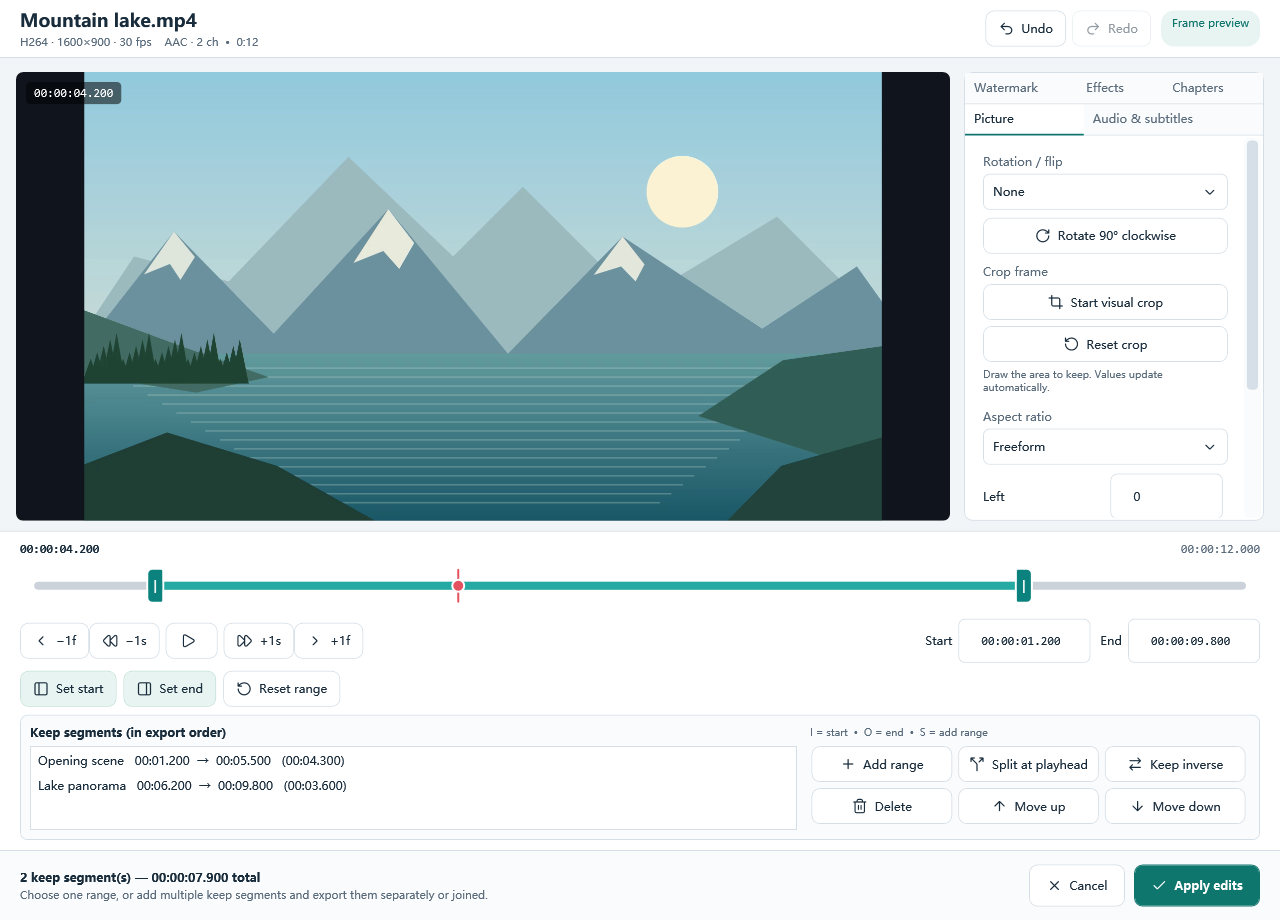
Open Edit / Trim and set the keep range. Load a supported external subtitle and enable burn-in if the delivery format needs visible captions on every player. Use Subtitle Studio to inspect timing or appearance, then export a separate test clip.
Check any delay before producing the final
Play the test clip without loading a sidecar file. If both checked captions appear equally early or late, examine their time offset relative to the chosen clip start. If only later captions drift, compare multiple lines and verify the subtitle file comes from this exact version of the video.