Windows guide
Convert a 1080p Video to 720p for a Presentation
Make a smaller copy for a slide deck while checking that labels stay legible and playback works on the room’s computer.
Download Free Video ConverterWindows 10/11 (64-bit) · 2.07 MiB online installer. Downloads about 95.62 MiB of required program components. A required .NET runtime may download separately.
Pick a demanding 20-second section
Choose a segment with small on-screen text or motion. A 1080p source may be easier to share at 720p, but a projected screen can make softened labels more obvious. Keep the high-resolution source for later edits.
Set the output height and keep motion consistent
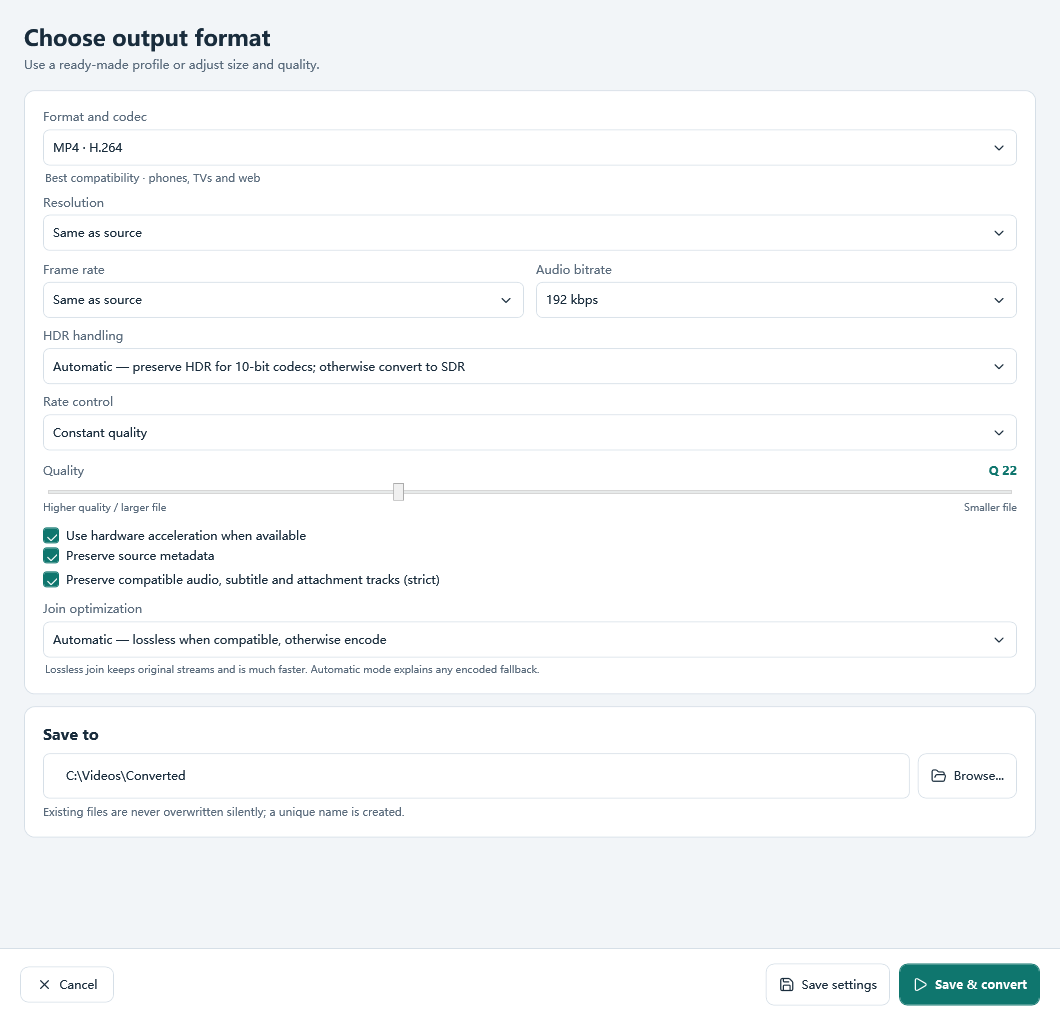
Add the file using Video, select MP4 · H.264 and open Output settings. Choose the 1280 × 720 size or the equivalent 720p option for a 16:9 source. Keep the existing frame rate for the first version. Save to a new folder and convert.
Insert and play the copy in the actual deck
Test full-screen in the presentation app, ideally on the computer that will show the slides. Compare captions and small labels to the original. If motion stutters in both copies, check the playback computer. If only the smaller copy loses crucial detail, use the original or crop and re-record the critical section.